Note
Access to this page requires authorization. You can try signing in or changing directories.
Access to this page requires authorization. You can try changing directories.
Important
Some or all of this functionality is available as part of a preview release. The content and the functionality are subject to change. Preview features aren't intended for production use and might have restricted functionality. These features are subject to supplemental terms of use, and are available before an official release so that customers can get early access and provide feedback.
Note
Microsoft Sustainability Manager has been rebranded as Dynamics 365 Sustainability. This change reflects a new product name only. Product functionality, capabilities, licensing, and service offerings remain unchanged. Some screenshots and UI labels in this article may show the previous name while visuals are being updated.
Note
This feature is included in Microsoft Dynamics 365 Sustainability Premium.
Create a data collection response
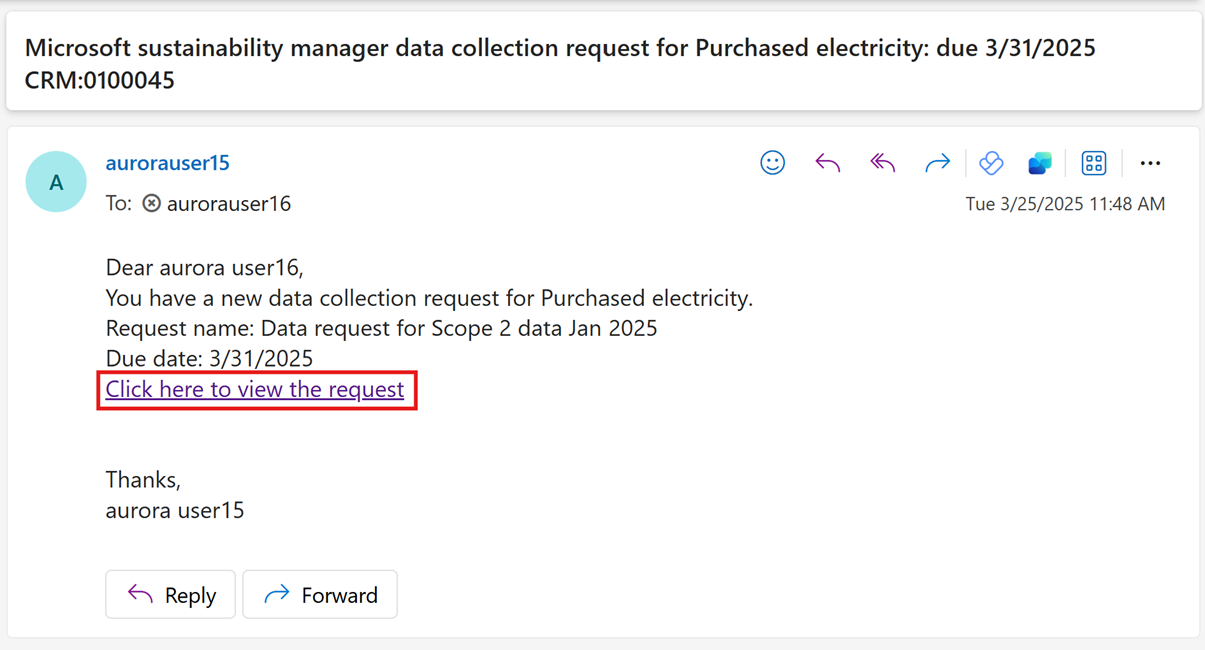
Select the link in the data collection request email to open the platform where you submit the data.
On the platform, select Requests to view all your requests.
Select a request to view existing responses under the Data responses section at the bottom. You can add new responses in two ways.
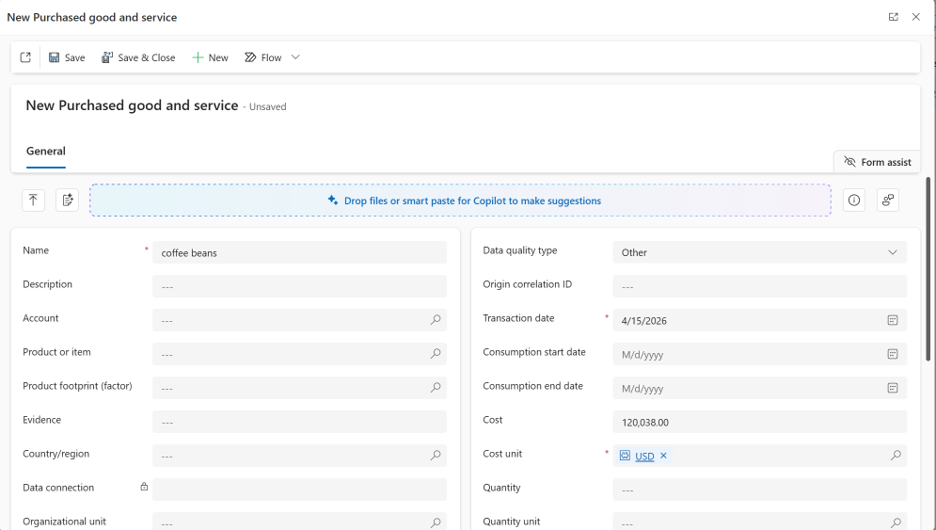
Add responses by filling in the form (Add artifact)
Select the request, and then select Add response > Add artifact on the command bar. Alternatively, open the request and select Add response > Add artifact in the Data response section.
Fill in the required and optional fields in the form, and then select Save & Close.
Add responses in bulk by importing Excel data (Import data)
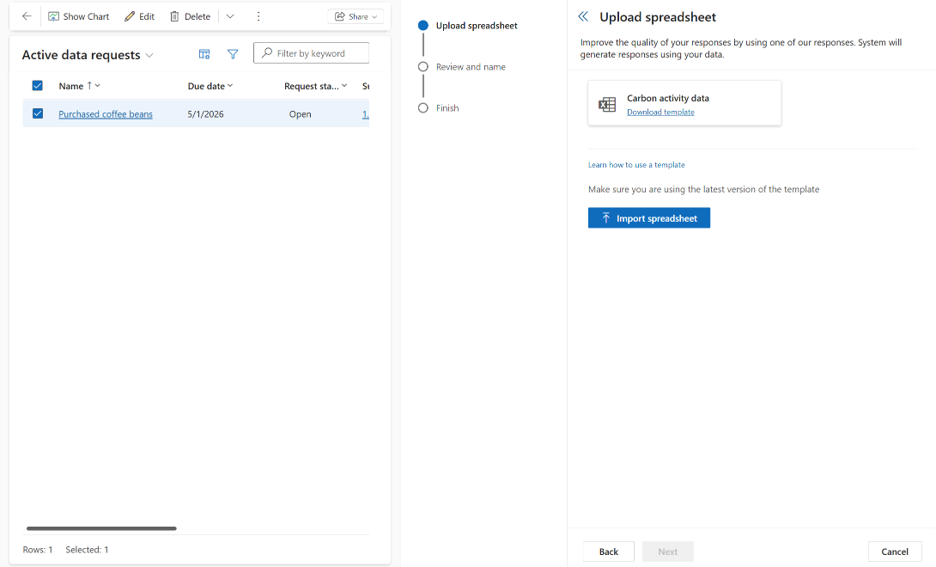
Select the request, and then select Add response > Import data on the command bar. Alternatively, open the request and select Add response > Import data in the Data response section.
Download the template and open the Excel worksheet that matches the sustainability topic in the request.
Add each response as a row, filling in the required and optional fields. For example, if the sustainability topic is Purchased goods and services, enter your data on that sheet.
Select Import spreadsheet to save and upload the template.
Select Next, name the import, optionally add a description, and then select Save. Select Done.
After you add a response, the Response status field is Draft, which means the response isn't submitted and you can still edit it.
Attach evidence documents to support the response (optional)
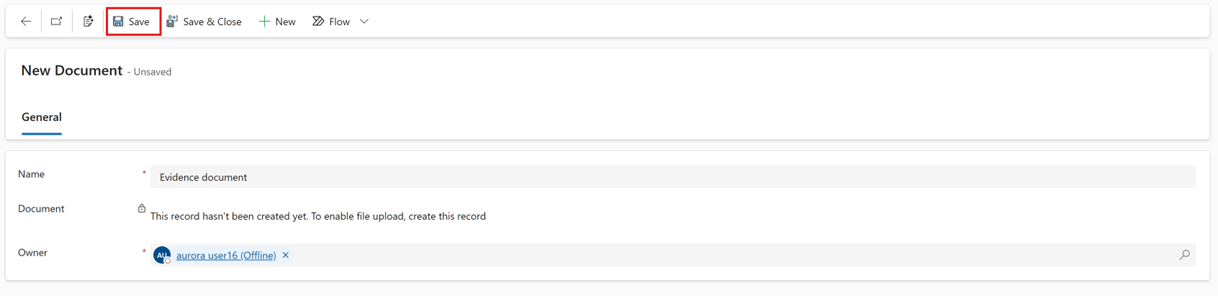
Open the data collection response you created in the previous step and select New document.
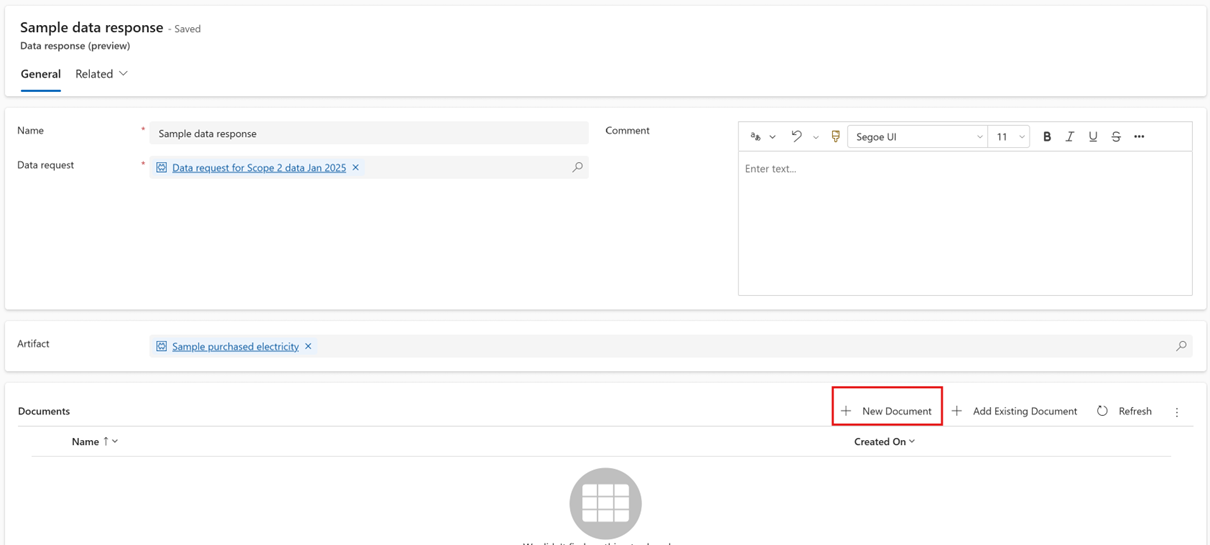
Enter the document name, and then select Save.
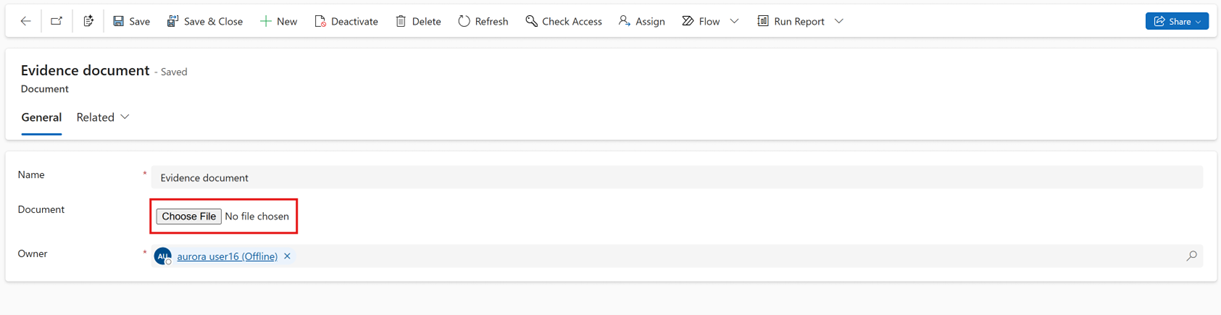
Select Choose File, and then select the file you want to add.
Select Save.
Submit data responses
When your draft responses are ready, submit them so the data manager can review them.
Select one or more responses under a data request, and then select Submit.
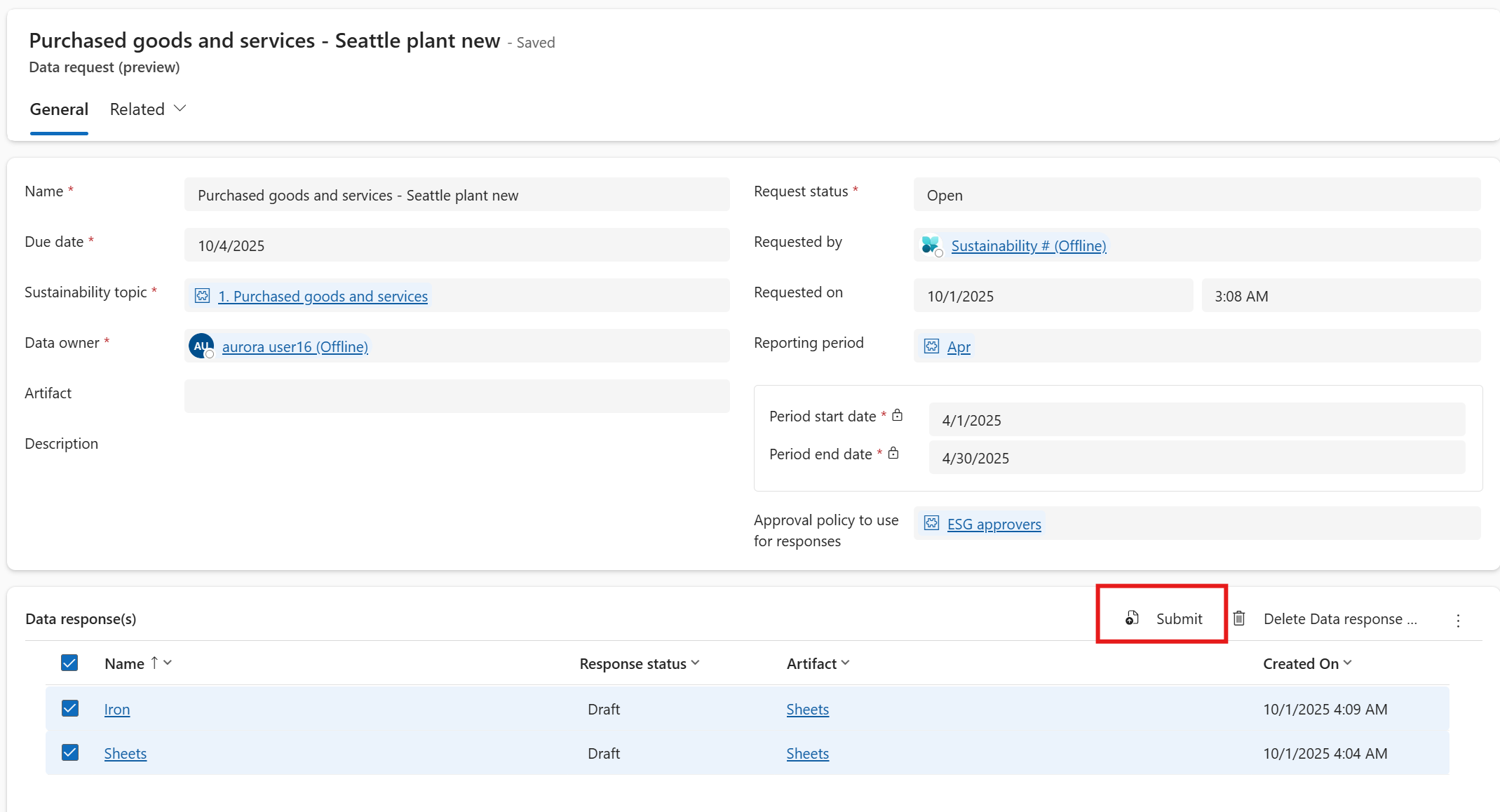
If the data manager sets an Approval policy to use for responses when they create the data request, your submitted responses automatically enter a review process.
What to expect during the review process
- The data manager configures the approval policy with multilevel approvers in sequence to help ensure accuracy. While approvers review your responses, the Response status is In review and you can't edit them.
- To track progress, open a response and review the Approvals section at the bottom. Select a record to see the approval workflow and status.
- If a response is rejected, select it, delete it, and then submit a new response.
- You can continue to add new responses to the same request while previously submitted responses are still in review. Select and submit each new response.
- When a response includes an Excel worksheet, the approver reviews the entire file before granting approval.