Note
Access to this page requires authorization. You can try signing in or changing directories.
Access to this page requires authorization. You can try changing directories.
Note
This article describes features used in agents or agent flows powered by the standard harness.
The consent-based recording feature enables organizations to get explicit permission from customers before recording and transcribing calls within the Interactive Voice Response (IVR) system or voice-enabled agent.
When a call starts, the voice-enabled agent automatically presents customers with a consent request prompt. If customers grant consent, the call proceeds with recording and transcription capabilities enabled. When customers don't provide consent, the voice-enabled agent continues the interaction without activating recording or transcription functions, so it preserves user privacy preferences.
The following sections describe the steps required to enable consent-based recording in Copilot Studio.
Prerequisites
An active Copilot Studio license.
Voice channel is provisioned in Customer Service.
Note
Consent‑based recording is supported only for inbound voice workstreams that have a voice-enabled agent associated with them. This feature isn't supported for outbound calls or for inbound voice workstreams that don't have a voice-enabled agent associated with them.
Configure consent-based recording for new voice-enabled agents
Create a new agent by using one of the following methods:
From Copilot Studio. Perform the steps in Create an agent.
From Dynamics 365 Customer Service admin center, perform the steps in Add an agent and don't select Add voice to bot.
After you create an agent, perform the following steps in Copilot Studio:
Select the environment where you want to publish the agent.
Go to Agents and select your agent.
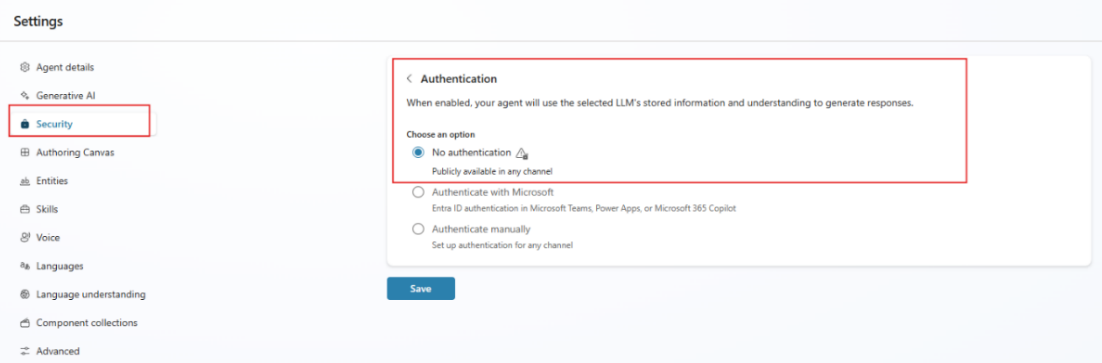
Select Settings > Security > Authentication, and then select No authentication.
Select Save.
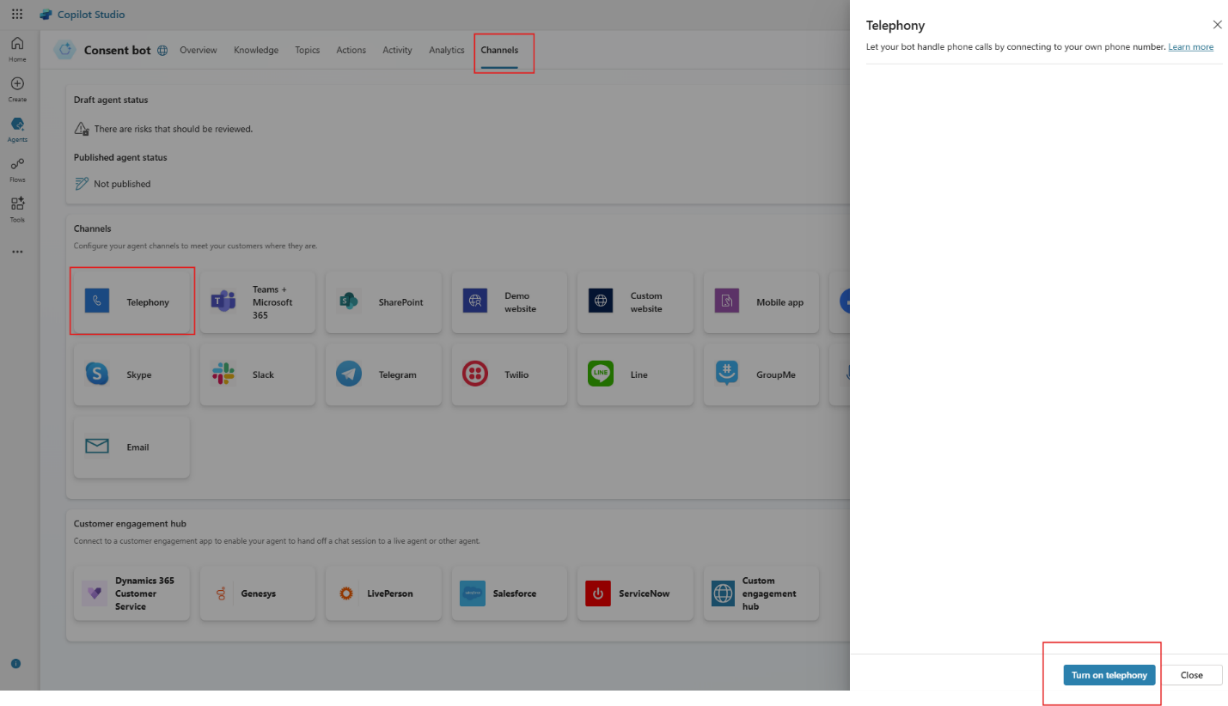
Select the Channels page for the agent, select Telephony, and then select Turn on telephony. Once telephony is turned on, you see a message that the agent is connected to telephony agents.
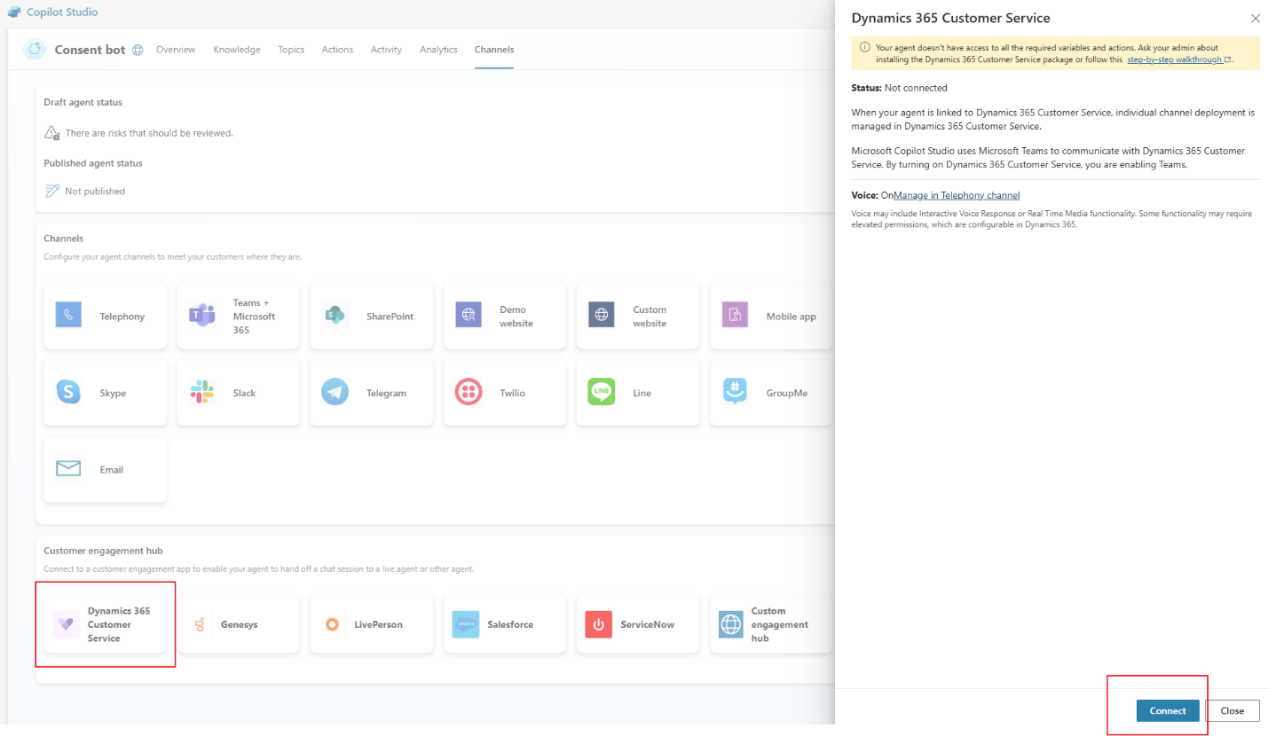
Select Dynamics 365 Customer Service and then select Connect.
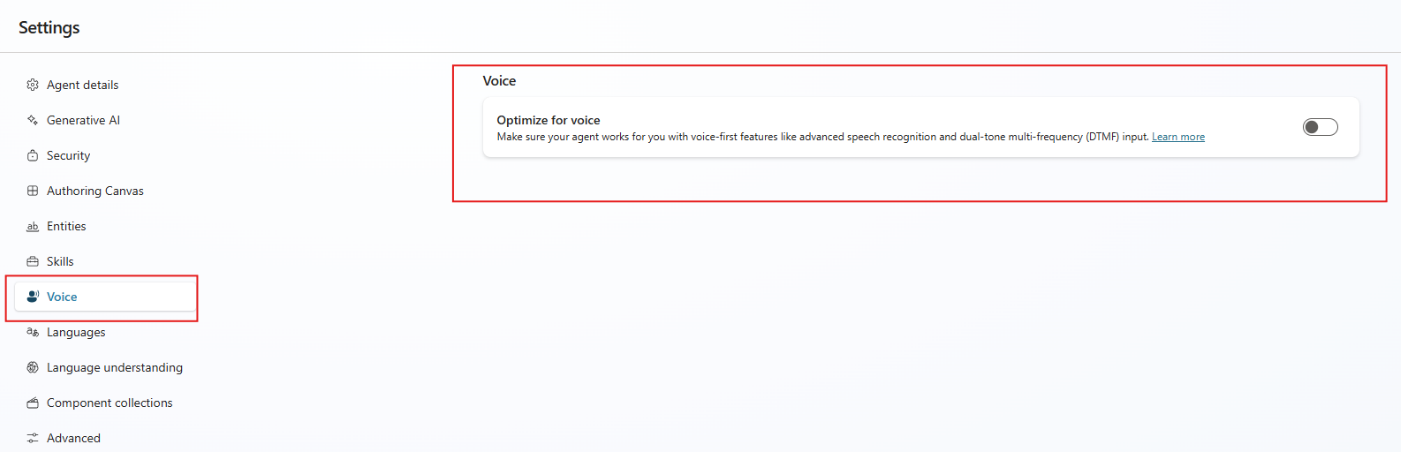
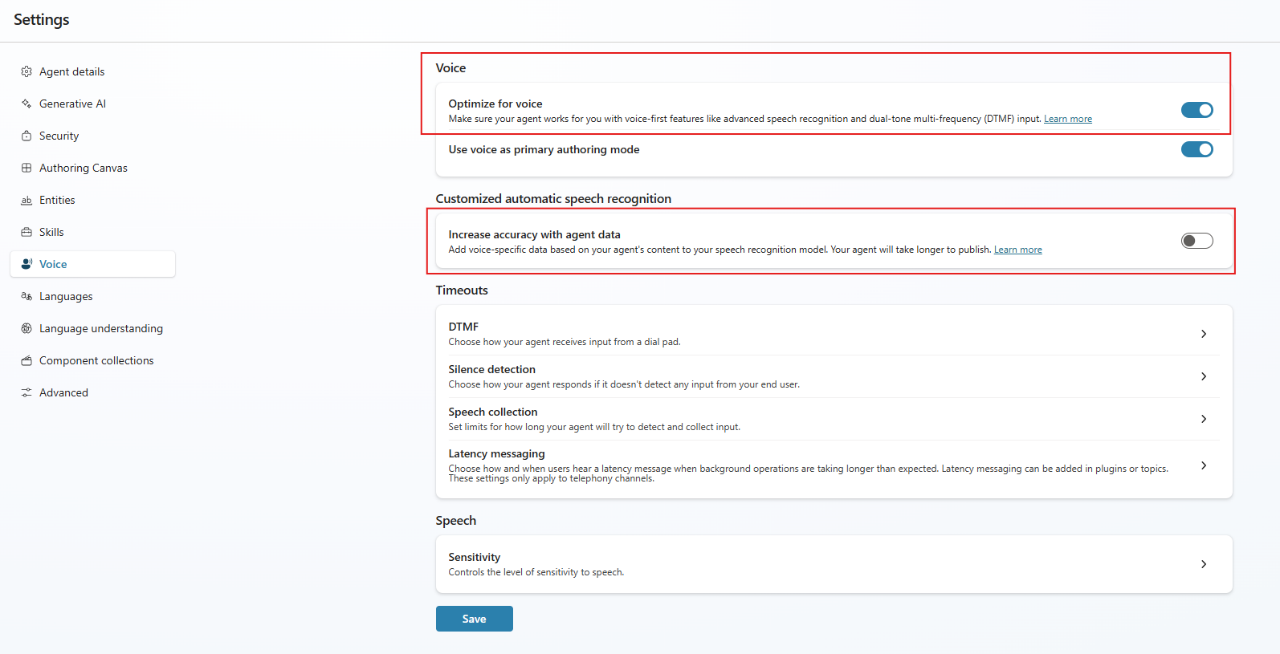
Go to Settings > Voice and turn on Optimize for voice.
Make sure that Increase accuracy with agent data is turned off.
Select Save.
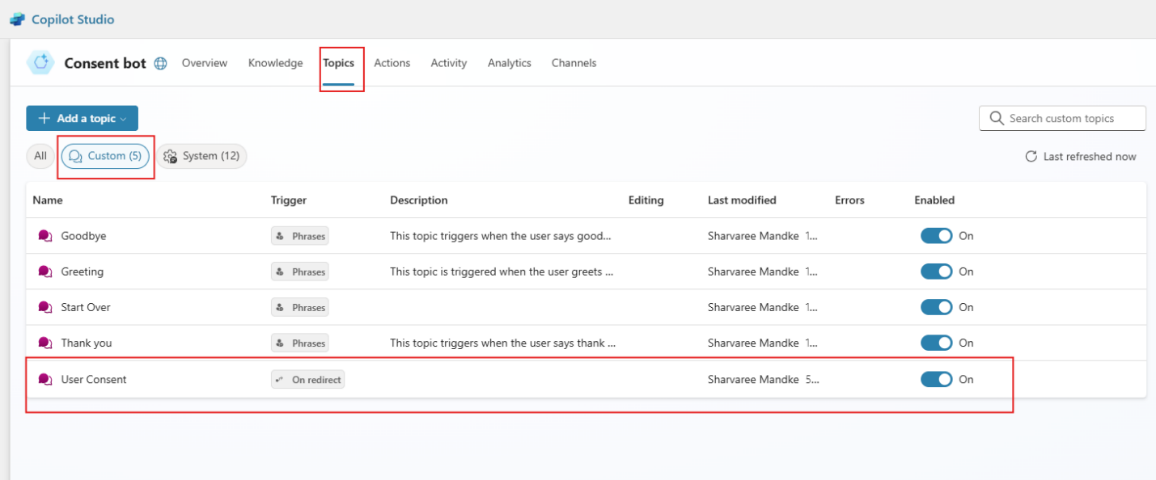
Go to Topics > Custom, and select the User Consent topic.
Note
This topic is a sample that shows how to ask for consent. Modify this topic to ensure it meets your business and compliance requirements.
Go to System topics and select the Conversation Start topic.
Select Add node and then select Topic Management > Go to another topic > User Consent.
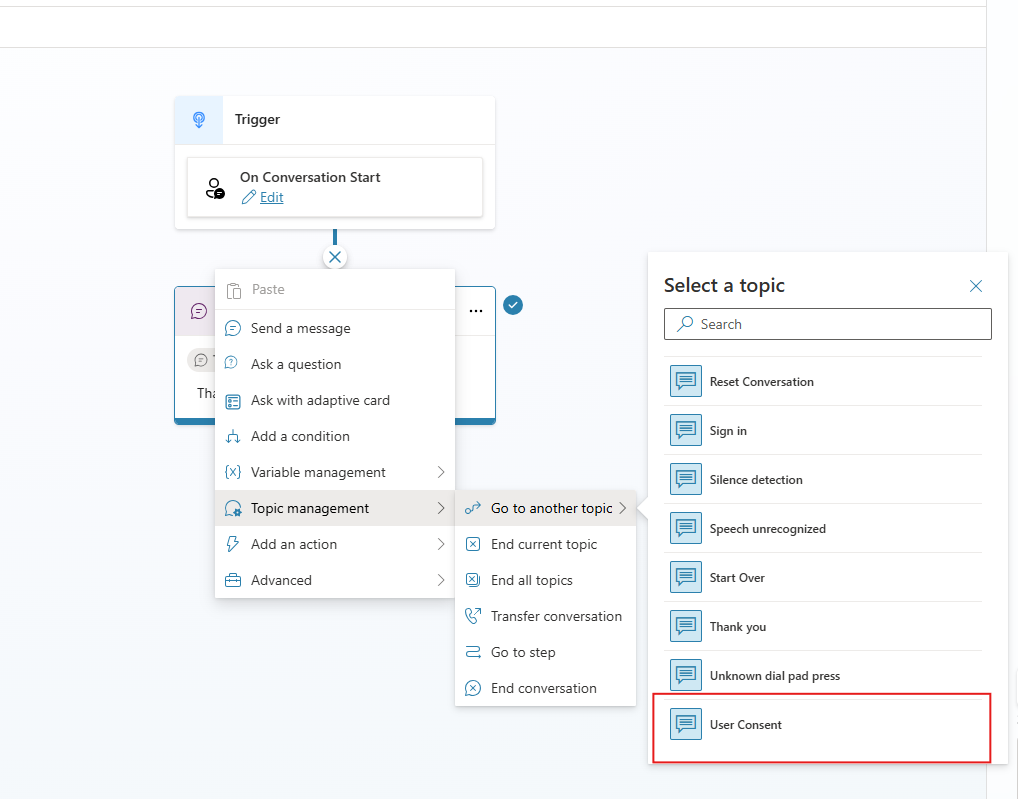
Select Save and then publish your agent.
Sign in to Dynamics 365 Customer Service admin center.
Create a workstream. Learn more in Create and manage workstreams.
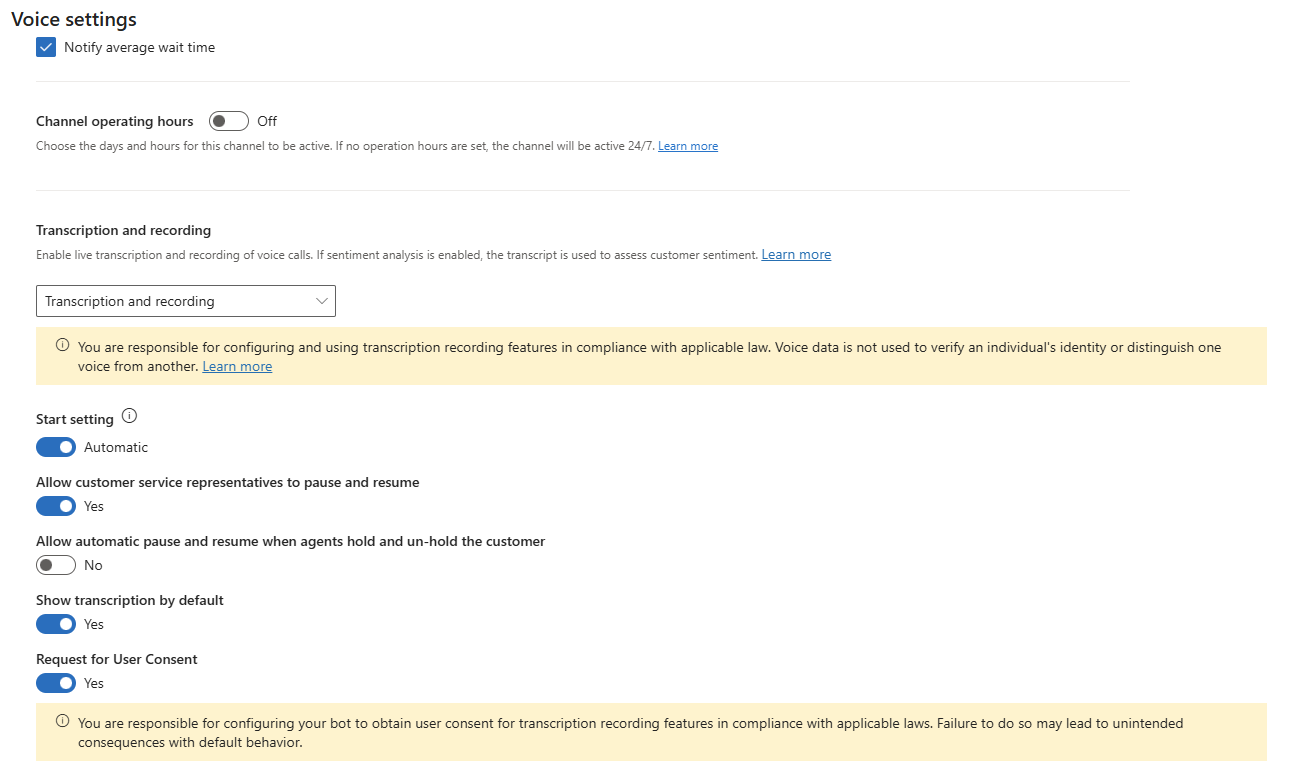
Setup call recording and transcription. Learn more in Configure call recording, transcription, and real-time translation.
Under Transcription and recording, turn on Request for User Consent.
Note
- Turning on Request for User Consent doesn't automatically prompt the user for consent. Explicitly follow the steps outlined earlier in this article. If you turn off this setting, the voice-enabled agent doesn't request consent, regardless of the previous configuration setting.
- Request user consent immediately after the call connects. Configure the Conversation Start topic to redirect the caller to the User Consent topic.
Configure user consent topic for existing agents
To configure the User Consent topic in Copilot Studio for existing agents, follow these steps. For existing agents, the maker must manually create a custom topic by using the provided YAML code.
Go to Topics > Custom.
Select Add a Topic > From Blank.
Select (…) More on the toolbar and then select Open code editor.
Paste the following code, and then select Save.
 kind: AdaptiveDialog
 beginDialog:
   kind: OnRedirect
   id: main
   actions:
     - kind: ConditionGroup
       id: conditionGroup_meb0Ve
       conditions:
         - id: conditionItem_txK0VF
           condition: =Global.AskForConsent = true
           actions:
             - kind: Question
               id: tm6Yij
               interruptionPolicy:
                 allowInterruption: false
               unrecognizedPrompt:
                 speak:
                   - I'm sorry, I didn't get that. Do you consent to the call being recorded?
               repeatCount: 2
               alwaysPrompt: true
               variable: Global.ConsentResponse
               prompt:
                 speak:
                   - This call may be recorded for quality and training purposes. Do you consent?
                 allowBargeIn: false
               defaultValue: true
               entity:
                 kind: BooleanPrebuiltEntity
                 dtmfMultipleChoiceOptions:
                   generateMapping: true
                   readOutOptions: true
               voiceInputSettings:
                 silenceDetectionTimeoutInMilliseconds: 5000
                 repeatCountOnSilence: 1
                 defaultValueMissingAction: SetValue
                 defaultValueOnSilence: true
             - kind: ConditionGroup
               id: Q27jCU
               conditions:
                 - id: SpRb5l
                   condition: =Global.ConsentResponse = true
                   actions:
                     - kind: SendActivity
                       id: 1C6TZE
                       activity:
                         speak:
                           - Thank you for your consent. This call will be recorded.
                 - id: cGBXo2
                   condition: =Global.ConsentResponse = false
                   actions:
                     - kind: SendActivity
                       id: 7WPZ1f
                       activity:
                         speak:
                           - This call will not be recorded.
               elseActions:
                 - kind: SendActivity
                   id: woLRu5
                   activity:
                     speak:
                       - This call will be recorded.
             - kind: SendActivity
               id: WgtRnP
               activity:
                 kind: EventActivity
                 value: =Global.ConsentResponse
                 name: Sys.ConsentEvent
     - kind: EndDialog
       id: F9eqKn
Add this topic to the On Conversation Start topic and publish the agent.
Note
When the user doesn't provide input in response to the consent prompt, the system treats this condition as implicit consent and initiates recording and transcription of the call. The administrator and agent maker should verify that the voice agent is properly configured. If the consent topic isn't set up correctly, the system records the call by default.
Workstream setting
Control consent-based recording at the workstream level. To prompt callers for consent, enable this setting for the voice-enabled agent. When you disable this setting, the voice-enabled agent doesn't ask callers for consent.
If you enable consent-based recording but don't configure the voice-enabled agent to request consent, the call is still recorded and transcribed. However, the voice-enabled agent doesn't prompt callers for consent. This behavior applies only when recording and transcription are enabled for the workstream.
The following table shows the behavior for consent-based recording:
| Request for user consent at workstream level | Copilot Studio topic status | Default experience |
|---|---|---|
| Off | On | Consent-based recording isn't offered to callers |
| On | On | Consent-based recording offered to all callers |
| On | Off | This configuration defines all customers as having "opted in" and the system proceeds with recording and transcription |
| Off | Off | Consent-based recording isn't offered to callers |
Transcription-only behavior
When the workstream behavior is set to Transcription only, consent handling follows the same model used when set to Transcription and recording. If the caller provides consent for transcription, the call is transcribed. If the caller declines consent, no transcript is generated.
If the conversation is escalated from a voice-enabled agent to a customer service representative (CSR), transcription continues only if the caller previously provided consent. If consent wasn't provided, the call isn't transcribed and no transcripts are displayed to the CSR.
Customer service representative experience
If the customer doesn't consent to transcription and recording and the voice-enabled agent escalates the call to the CSR, the following actions occur in the workspace:
The transcript isn't displayed.
The call progresses without any recording or transcription.
Representatives can't start or pause recording and transcripts.
Transfers and consults
When a customer service representative transfers a call to another representative within Dynamics 365 Contact Center, recording and transcription continue based on the caller's original consent choice. For example, if the caller doesn't consent to recording, the call isn't recorded at any point during the transfer or throughout the remainder of the interaction. The same behavior applies to consult scenarios, where a representative consults with another representative during the call.
If a call is transferred to a non-Microsoft party outside of Dynamics 365 Contact Center, Microsoft doesn't record or transcribe the call. Microsoft doesn't control or guarantee whether the non-Microsoft party records the call. Recording behavior is subject to the non-Microsoft party’s own policies and systems.
Call recording starts when the caller connects to the voice-enabled agent. If the caller doesn't provide consent, Microsoft immediately stops recording the call.
To support compliance requirements, the system records the consent prompt and the caller’s response. Microsoft stores this recording in Microsoft‑managed storage, and customers can't access it. Microsoft automatically deletes this recording within two hours.
Support
You can contact Microsoft Support to turn off the feature and get technical support for any issues that you experience.