Note
Access to this page requires authorization. You can try signing in or changing directories.
Access to this page requires authorization. You can try changing directories.
Dr. PIX runs experiments on the events you select in a GPU Capture. Each experiment replays the workload, usually with a change applied, and then reports measurements or estimated savings. Use Dr. PIX to find out whether a workload is limited by pixel work, rasterization, bandwidth, or another cause before you change your code.
Prerequisites
- Open a GPU Capture in PIX. For more information, see Take captures.
- Start analysis. Experiments need PIX to replay the capture. If analysis isn't running, the Dr. PIX view shows a prompt to start it instead of the experiment results. For more information, see Analyze frames with GPU Captures.
Open the Dr. PIX view
The Dr. PIX view is in the Tools tab of the default layout, next to the Events view. If you closed it or your layout doesn't include it, add it as described in Arrange views.
Select the events to analyze
Most experiments analyze only the events that you select. The toolbar at the top of the Dr. PIX view shows the IDs of the selected event range.
- In the Events view, select an event or a range of events.
- Check that the selection includes at least one event that does GPU work. If it doesn't, the view prompts you to select an event or a range of events that includes at least one GPU ID.
The ExecuteIndirect and Tight Resource Alignment experiments don't use the event selection. They analyze the whole capture.
Run an experiment
- In the Dr. PIX view, use the drop-down list in the toolbar to select the experiment. Basic Information is selected by default. Selecting an experiment doesn't run it.
- Select Run Experiment. A progress bar might appear while PIX replays the workload.
- Read the results in the view. To copy them to the clipboard, right-click the results and select Copy.
If you change the event selection, run the experiment again. Within an analysis session, PIX keeps the results for each combination of experiment, selection, and shader edits, so returning to a selection that you already ran shows its earlier results. Restarting analysis clears these results.
To run experiments programmatically, call IPixGpuCaptureAnalysis::GetDrPix, and then IPixGpuCaptureDrPix::RunExperiments. Pass an IPixGpuCaptureExperimentCallback to receive each result in OnExperimentResultAvailable. Query it for IPixGpuCaptureExperimentResult to get the experiment's metrics and messages.
Experiments
The following table lists the experiments that the drop-down list offers in PIX releases. The view also shows a description of the selected experiment. To list the experiments programmatically, call IPixGpuCaptureDrPix::GetExperimentCount and GetExperiment.
| Experiment | What it measures |
|---|---|
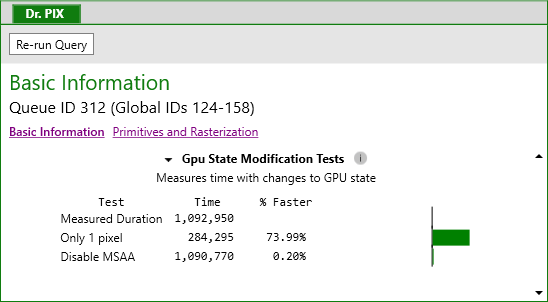
| Basic Information | Compares the workload's measured duration with the same workload re-run with every viewport forced to 1x1. The difference indicates how much time the workload spends in fragment processing. |
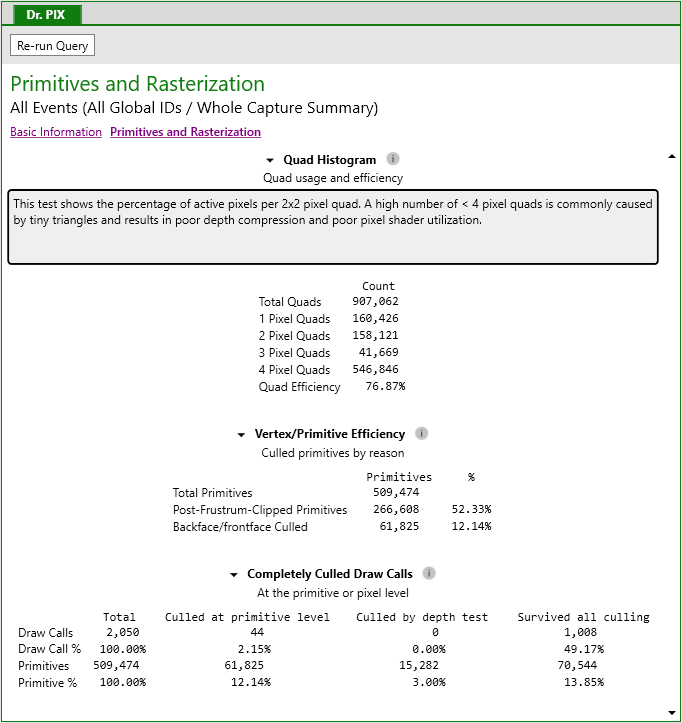
| Primitives and Rasterization | Reports pixel-quad efficiency (active pixels per 2x2 quad, where small triangles produce sparse quads) and vertex and primitive efficiency (primitives or draw calls culled before rasterization or rejected by the depth test). |
| Bandwidth | Reports the memory bandwidth that the workload uses, broken down by counter group. The counters that appear depend on your GPU and any installed hardware vendor plugin. |
| Depth/Stencil | Compares the workload with the same workload re-run with [earlydepthstencil] forced on. Shows the speedup that enabling early depth-stencil testing could give shaders that don't discard pixels or write depth. |
| NonUniformResourceIndex | Instruments shaders that index resources dynamically to detect indices that vary within a wave. Varying indices give undefined results unless the shader wraps them in NonUniformResourceIndex. |
| Tight Resource Alignment | Estimates the memory savings from setting D3D12_RESOURCE_FLAG_USE_TIGHT_ALIGNMENT on supported placed resources, including a compaction step that tries to minimize the overlap heap size. |
| ExecuteIndirect | Estimates the time saved if each ExecuteIndirect call used the number of commands that it ran at capture time as MaxCommandCount. Large savings indicate oversized argument buffers on hardware and drivers where the cost depends on MaxCommandCount. |
Related content
- Collect timing data to see where the GPU spends time across a frame.
- Find issues with Warnings to check the capture for common problems.