Pastaba.
Prieigai prie šio puslapio reikalingas įgaliojimas. Galite bandyti prisijungti arba pakeisti katalogus.
Prieigai prie šio puslapio reikalingas įgaliojimas. Galite bandyti pakeisti katalogus.
The Fabric portal provides features to test and validate your User Data Functions code changes before publishing. You can test unpublished code in Develop mode or validate published functions in Run only mode. For local testing, you can use the VS Code extension.
Testing helps you:
- Validate that your functions run successfully without errors
- Verify that your functions return expected results with different inputs
- Debug issues quickly by viewing logs and error messages
- Iterate faster on code changes in Develop mode without publishing after every edit
- Confirm that published functions work correctly in Run only mode
Note
Some users might not have access to the Test capability in Develop mode depending on the region of their Fabric tenant. Review the regional limitations note in this article.
Prerequisites
Before you can test your functions, you need:
- A User Data Functions item in your Fabric workspace
- Write permissions to access Develop mode and use the Test capability
- Functions defined in your code (published or unpublished)
Understand Develop mode and Run only mode
Fabric User Data Functions provides two modes that determine what you can test:
- Develop mode - Test both published and unpublished functions. This mode allows you to validate code changes before publishing them.
- Run only mode - Run only published functions. This mode shows you what other users with Execute permissions can run.
You can switch between modes using the mode switcher in the upper right corner of your User Data Functions page. For more information about the portal interface, see Use the portal editor.
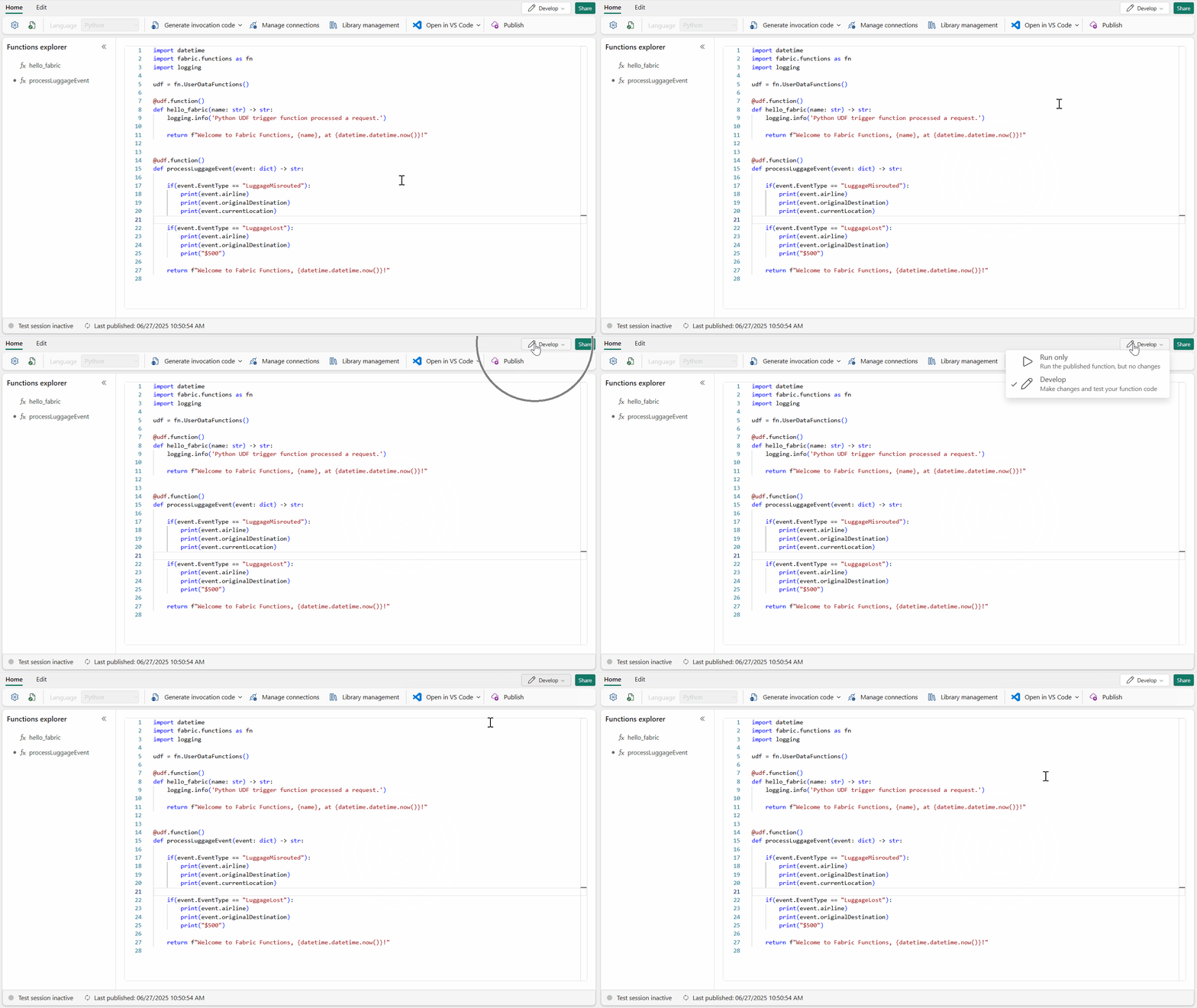
Test your functions in Develop mode
To test a function in Develop mode:
Switch to Develop mode using the mode switcher in the upper right corner.
Hover over the function you want to test in the functions list.
Select the Test icon to open the Test panel.
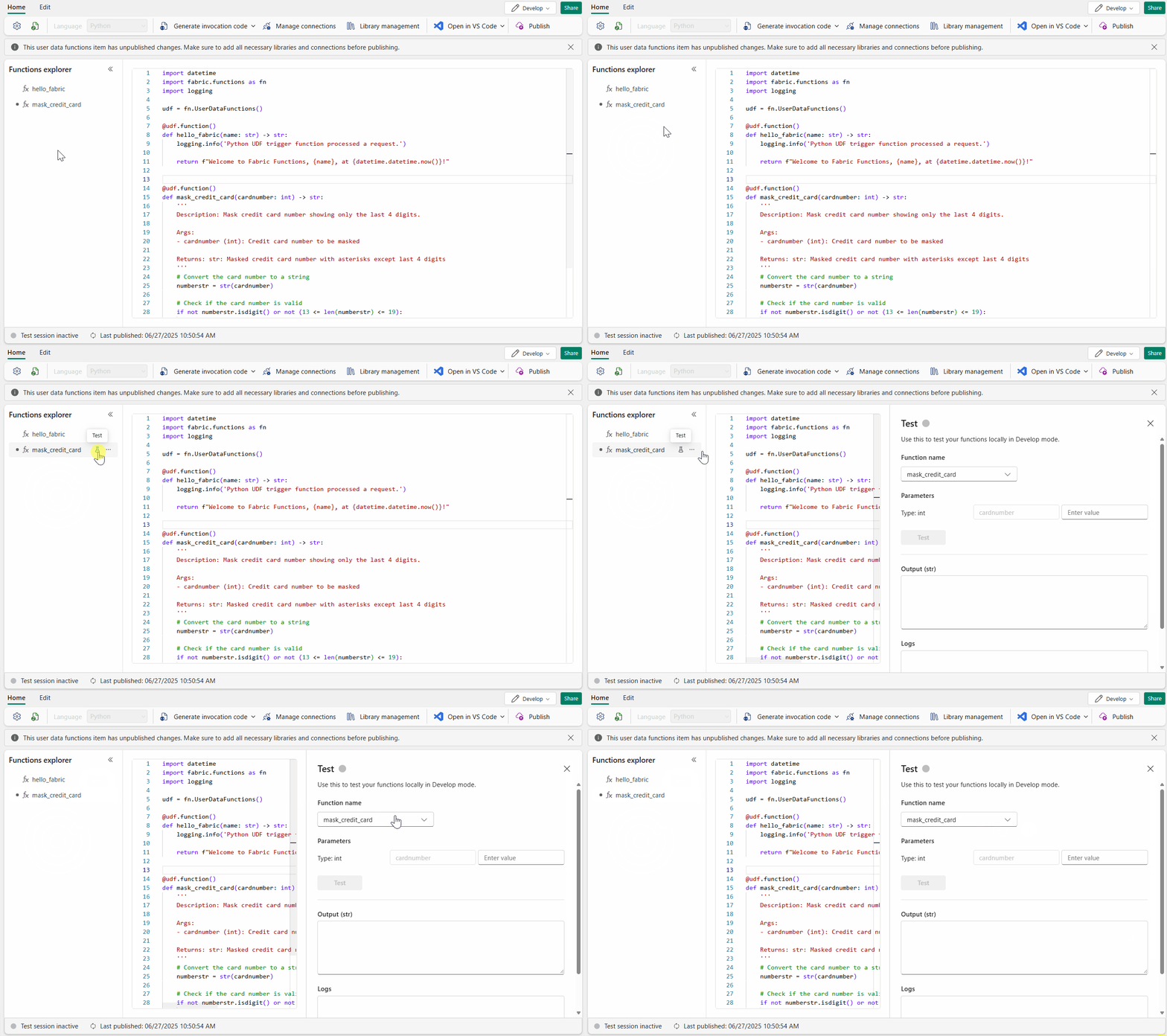
Note
The test session might take a few seconds to start. Once the session is active, you can run tests immediately, even after making code changes.
Understand the Test panel
When you select the Test icon, the Test panel opens as a dialog where you configure and run your tests. The panel provides everything you need to test your functions and review results:
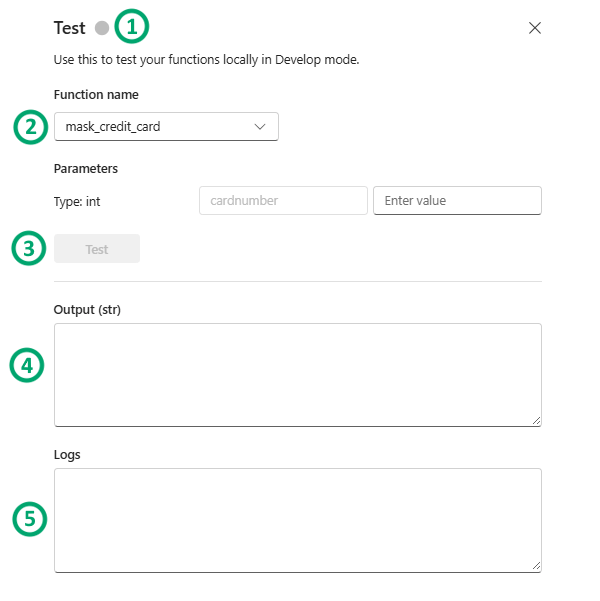
- Function selector - Choose which function to test from the drop-down menu. The list includes both published and unpublished functions.
- Parameters - Provide input values for functions that require parameters.
- Test output - View the return value of your function or error details if the function fails.
- Logs output - View logs generated by your code, including statements added to the
loggingobject. For more information about viewing and analyzing logs, see View function logs.
To run the test, provide any required parameters and select the Test button. The test session indicator in the status bar shows when your test session is active. The session remains active for 15 minutes of inactivity, allowing you to test multiple times without waiting for the session to restart.
Test published functions in Run only mode
To test published functions as other users would run them:
- Publish your functions if you haven't already.
- Switch to Run only mode using the mode switcher.
- Hover over a function in the functions list.
- Select the Run icon to open the Run panel.
- Provide any required parameters in the Run panel.
- Select Run to execute the function.
The Run panel provides the same elements as the Test panel: function selector, parameters, output, and logs. This mode is useful for verifying that published functions work correctly for users with Execute permissions.
Best practices for testing
Follow these practices to test your functions effectively:
- Test early and often - Test functions as you develop them rather than waiting until all code is complete.
- Test with different inputs - Validate your functions with various parameter values, including edge cases.
- Review logs carefully - Use the logs output to understand function behavior and identify issues.
- Test before publishing - Always test in Develop mode before publishing to ensure functions work as expected.
- Use Run only mode for validation - After publishing, use Run only mode to verify that published functions work correctly.
Troubleshooting testing issues
If you encounter issues while testing your functions, consider these common solutions:
Test session not starting
- Wait a few seconds for the test session to initialize
- Check your network connection and ensure you can access Fabric services
- Verify that your region supports the Test capability (see regional limitations)
Function fails with connection errors
- Verify that all required data connections are configured correctly
- Ensure you have permissions to access the connected data sources
- Check that connection credentials are valid and not expired
Function fails with import or module errors
- Confirm that all required libraries are installed
- Wait for library installation to complete before testing
- Check the service limits for library size restrictions
Test times out
- Review the execution timeout limit (240 seconds)
- Optimize your function code to reduce execution time
- Check logs to identify which operations are taking longest
Return value too large error
- Review the response size limit (30 MB)
- Reduce the amount of data returned by your function
- Consider pagination or filtering results
For more information about diagnosing issues, see View function logs.
Regional limitations for Test capability in Develop mode
The Test capability isn't available in all Fabric regions yet. If your Tenant region isn't supported, you see a message in the Functions portal. You can view the supported regions in the Service details and limitations article.

If the Test capability is unavailable in your region, you can still publish your functions and use the Run capability to validate them. Alternatively, you can create a new capacity in a supported region.
Related content
- Use the portal editor - Learn about the portal interface, Develop mode, and publishing
- View function logs - Analyze logs and troubleshoot function execution issues
- Python programming model - Understand how to write function code
- Service details and limitations - Review service limits and regional availability
- Create user data functions with VS Code - Learn about local testing options