Nota
Capaian ke halaman ini memerlukan kebenaran. Anda boleh cuba mendaftar masuk atau menukar direktori.
Capaian ke halaman ini memerlukan kebenaran. Anda boleh cuba menukar direktori.
A Teams app is an App for Microsoft 365, just as an Office Add-in and a custom Copilot agent are. This enables you to combine an add-in with one or more of these other types of Microsoft 365 extensions. Your combined solution uses a single manifest that configures all of its parts, and a single app package (a ZIP file) that serves as the unit of sideloading and of publishing to Microsoft Marketplace or the Microsoft 365 Admin center.
With the latest releases of Microsoft Teams JavaScript client library (TeamsJS version 2.0.0 and later), the unified app manifest for Microsoft 365 (previously called Teams app manifest) (version 1.13 and later), and Microsoft 365 Agents Toolkit (previously known as Teams Toolkit), you can build and update Teams apps to run in any of the three Microsoft 365 hub applications (the applications that have an App bar).
- Teams
- Microsoft 365 Copilot
- Outlook
You can also combine into a single distributable app package a Teams app with a custom Copilot extension or a Office Add-in for Excel, PowerPoint, Word, or Outlook.
Use this packaging system to combine closely related functionality and experiences into a single app for Microsoft 365. Some possible scenarios include:
- Make a page experience available in both your add-in task pane and in a custom personal tab in one or more of the Microsoft 365 hub applications.
- Create a Copilot agent that gets Microsoft Graph data and is available in Excel and Teams.
- Include similar handlers for similar events, such as a user being added to a Teams conversation and a recipient being added to an Outlook message.
- Record in a database discrete user actions in an Office application, and view the accumulated data in a custom tab that is opened from the App bar in one or more of the Microsoft 365 hubs.
Tip
You can't include a SharePoint Framework app in the Microsoft extension's app package, but you can bundle your Microsoft 365 extension with one or more SharePoint Framework apps into a single Software as a Service (SaaS) offering. The SaaS is installed and managed as a unit using the integrated apps portal in the admin center. For more information, see SaaS linked apps and Integrated Apps portal.
- For more information on admin guidance and options for managing your app for Microsoft 365, see Apps for Microsoft 365 that work across application hosts.
- For more information on app manifest, TeamsJS versioning, and Teams platform capability support across Microsoft 365, see Teams JavaScript client library overview.
The following sections introduce some of the Microsoft 365 development features that cross the boundaries between Office, Teams, and Copilot. For a matrix of support on various platforms, see Platform support.
Personal tabs
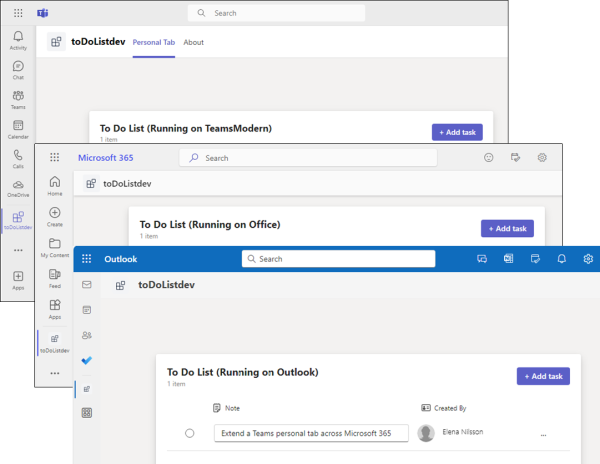
Reach your users where they are, right in the context of their work by extending your web app as a personal tab application that also runs in Outlook, Teams, and the Microsoft 365 Copilot application.
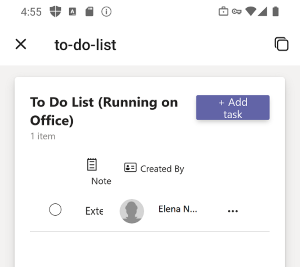
The following images show the personal tab running on Microsoft 365 for iOS and Android app. (It will also run in Outlook for iOS and Android app.)
Tip
Personal tabs can be built and hosted with SharePoint Framework (SPFx) version 1.16 and later as an alternative to hosting them on a web server or web service. See Add Teams tab to SharePoint and Build Microsoft Teams tab using SharePoint Framework - Tutorial. Although these articles use the term "Teams tab" they apply also to personal tabs in Outlook and Microsoft 365 Copilot.
Message extensions and link unfurling
Message extensions enable users to interact with your web service using buttons and forms. Users can search or initiate actions in an external system from chat messages in Teams and email messages in Outlook.
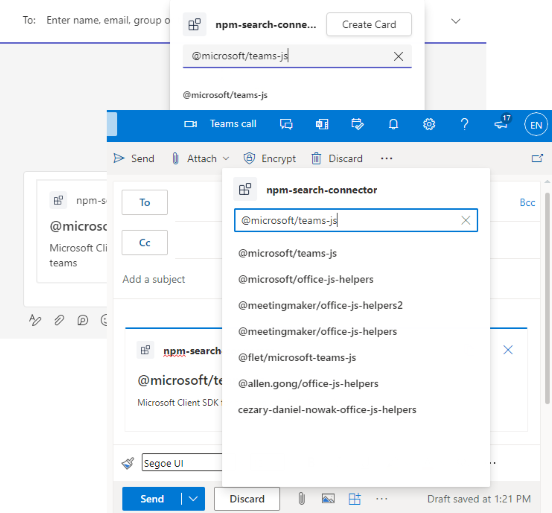
Link unfurling works in both Outlook messages and Teams chat messages. You can also unfurl links with cards that launch Stageview.
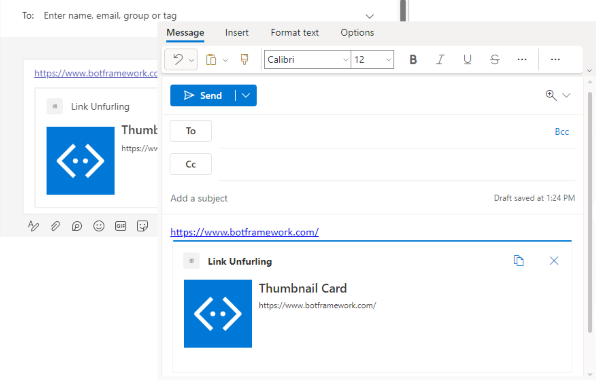
For more information, see Build message extensions and Teams message extensions. See also the guidance in Scenarios for creating an Outlook add-in and a message extension to learn when to use a Outlook add-in and when to use a message extension in Outlook.
Meeting apps
Meeting apps are essentially personal tabs that are designed to foster collaboration before, during, and after meetings. You can configure and add meeting apps to the Teams meetings scheduled from Outlook and also run meeting apps within the Outlook calendar.
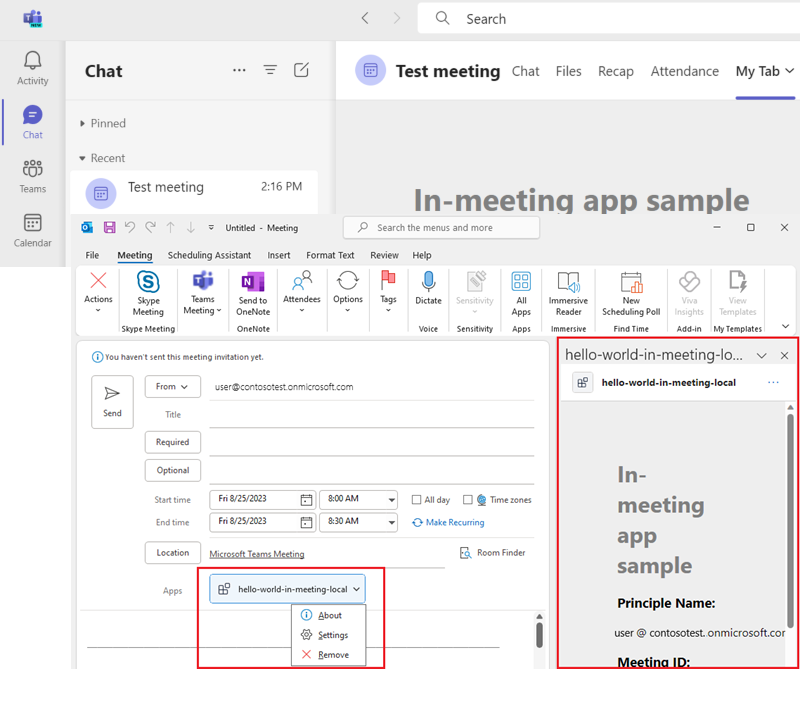
For more information, see Apps for meetings and calls and Extend a meeting app to Outlook.
Actions in Microsoft 365
Actions aim to integrate your app into your user's workflow by enabling easy discoverability and seamless interaction with their content. By directing users to your app with their intent and contextual content, Actions enable efficient task completion. This integration enhances the visibility and engagement of your app with minimal development effort.
For more information, see Actions in Microsoft 365.
Platform support
The following table shows platforms supporting the various types of apps for Microsoft 365.
| Teams app features | Teams support | Outlook as a hub support | Microsoft 365 Copilot support | Word, Excel, Outlook, PowerPoint add-in support | Notes |
|---|---|---|---|---|---|
| Tabs-personal scope | Web, Desktop, Mobile | Web, Desktop, Mobile (Android, iOS) | Web, Desktop, Mobile (Android, iOS) | - | Channel and group scopes aren't supported for Microsoft 365. For more information, see Teams JavaScript client library. |
| Meeting apps | Web, Desktop, Mobile | Desktop | - | - | Meeting Stageview isn't supported in Outlook. See Extend a meeting app to Outlook. |
| Message extensions-search-based | Web, Desktop, Mobile | Web, Desktop | - | - | For limitations and troubleshooting, see Limitations. |
| Action-based message extensions | Web, Desktop, Mobile | Web | - | - | Viewable/actionable (not composable) in Teams/Outlook mobile preview (iOS, Android). For limitations and troubleshooting, see Limitations. |
| Link unfurling (including Stageview) | Web, Desktop | Web, Desktop | - | - | See notes on link unfurling and Stageview |
| Adaptive Card Loop components | Web, Desktop | Web, Desktop (only for new Outlook) | - | - | Viewable (not composable) in Teams/Outlook mobile preview (iOS, Android). See Adaptive Card-based Loop components. |
| Stageview | Web, Desktop, Mobile | Web (preview), Desktop (preview) | - | - | Viewable/actionable (not composable) in Outlook mobile preview (iOS, Android). See Message extensions. |
| Office Add-ins | - | - | - | Web, Desktop | See Office Add-ins platform overview. |
| Copilot agents | Web, Desktop | - | Web, Desktop | Web, Desktop | See Declarative agents for Microsoft 365 Copilot |
App planning and design
To create an app within the Microsoft 365 ecosystem, consider how it helps your users to perform their work and complete their daily tasks. By being thoughtful in your app planning and design, you can create an experience that is more integrated and introduces less friction for users with their app.
To get started with apps extended across Microsoft 365, see app playbooks and Microsoft 365 UI Kit (Figma) preview.
Microsoft commercial marketplace submission
Join the growing number of production Teams apps in the Microsoft Marketplace store as apps for Microsoft 365. The app submission process for Teams apps enabled for Outlook and Microsoft 365 is the same as for traditional Teams apps. The only difference is to use app manifest version 1.13 or later in your app package, which introduces support for Teams apps that run across Microsoft 365.
After your Teams app is published as an app for Microsoft 365, your app will be discoverable as an installable app in the Outlook and Microsoft 365 app stores, in addition to the Microsoft Teams Store. And if the app includes an add-in for Excel, PowerPoint, or Word, it will be in their stores too. When running in Outlook and Microsoft 365 app, your app uses the same permissions granted in Teams. Teams admins can manage access to Teams apps across Microsoft 365 for users in their organization.
For more information, see publish Teams apps for Microsoft 365.
Next step
Set up your dev environment to build Teams apps for Microsoft 365.
See also
Bekerjasama dengan kami di GitHub
Sumber untuk kandungan ini boleh didapati di GitHub, di mana anda juga boleh mencipta dan menyemak isu dan menarik permintaan. Untuk maklumat lanjut, lihat panduan penyumbang kami.
Platform Docs