หมายเหตุ
การเข้าถึงหน้านี้ต้องได้รับการอนุญาต คุณสามารถลอง ลงชื่อเข้าใช้หรือเปลี่ยนไดเรกทอรีได้
การเข้าถึงหน้านี้ต้องได้รับการอนุญาต คุณสามารถลองเปลี่ยนไดเรกทอรีได้
หลังจากที่คุณเผยแพร่เอเจนต์ของคุณและทำให้พร้อมใช้งานในศูนย์การจัดการ Microsoft คุณสามารถสร้างอินสแตนซ์เอเจนต์และผู้ใช้เอเจนต์ได้ อินสแตนซ์และผู้ใช้เหล่านี้ใช้พิมพ์เขียวเอเจนต์และรหัสเอเจนต์ที่คุณสร้างขึ้น
บทความนี้แบ่งกระบวนการออกเป็นสามขั้นตอนหลัก:
หากคุณพบปัญหา โปรดดูที่ส่วนการแก้ไขปัญหา
ข้อกำหนดเบื้องต้น
- แบบพิมพ์เขียวเอเจนต์ตั้งค่าอย่างถูกต้องตามที่อธิบายไว้ใน ขั้นตอนการตั้งค่าแบบพิมพ์เขียว
- แอปพลิเคชันเอเจนต์ได้รับการเผยแพร่อย่างถูกต้องตามที่อธิบายไว้ใน เผยแพร่เอเจนต์ไปยังศูนย์การจัดการ Microsoft
1. กำหนดค่าเอเจนต์ในพอร์ทัลนักพัฒนา Teams
หลังจากเผยแพร่แล้ว ให้กำหนดค่าพิมพ์เขียวเอเจนต์ในพอร์ทัลนักพัฒนา Teams เพื่อเชื่อมต่อเอเจนต์ของคุณกับโครงสร้างพื้นฐานการส่งข้อความของ Microsoft 365 หากไม่มีการกำหนดค่านี้ เอเจนต์ของคุณจะไม่ได้รับข้อความจาก Teams, อีเมล หรือบริการอื่นๆ ของ Microsoft 365
รับรหัสแบบพิมพ์เขียวของคุณ
เปิด
a365.generated.config.jsonในไดเรกทอรีการทำงานของคุณและคัดลอกค่าagentBlueprintIdไปที่พอร์ทัลนักพัฒนา
เปิดเบราว์เซอร์ของคุณและไปที่หน้าการกำหนดค่า:
https://dev.teams.microsoft.com/tools/agent-blueprint/<your-blueprint-id>/configurationแทนที่
<your-blueprint-id>ด้วยค่าagentBlueprintIdที่คุณคัดลอกหมายเหตุ
หากคุณไม่มีสิทธิ์เข้าถึงพอร์ทัลนักพัฒนา โปรดติดต่อผู้ดูแลระบบผู้เช่าของคุณเพื่อขอสิทธิ์เข้าถึงหรือให้ดำเนินการกำหนดค่านี้แทนคุณ
กำหนดค่าเอเจนต์
ในพอร์ทัลนักพัฒนา:
ตั้งค่า ชนิดเอเจนต์ เป็น แบบ API
ตั้งค่า URL การแจ้งเตือน ให้เป็นปลายทางการส่งข้อความของเอเจนต์ของคุณ ค้นหาค่า
messagingEndpointในa365.generated.config.jsonเลือก บันทึก
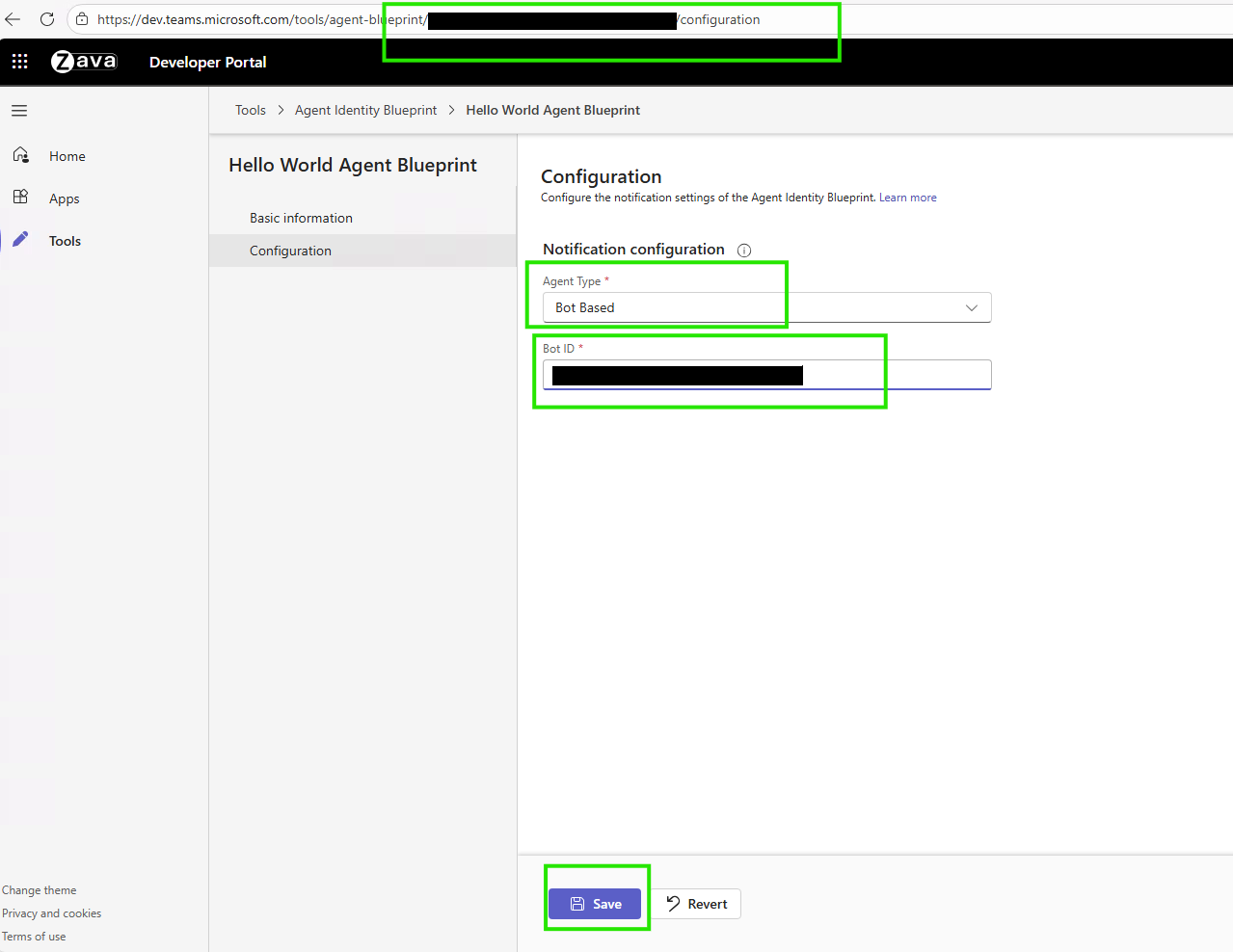
คุณต้องมีการกำหนดค่านี้ก่อนจึงจะสามารถสร้างอินสแตนซ์เอเจนต์ใน Teams ได้
เรียนรู้เพิ่มเติมเกี่ยวกับพิมพ์เขียวข้อมูลประจำตัวของเอเจนต์และการกำหนดค่าพอร์ทัลนักพัฒนา
2. สร้างอินสแตนซ์เอเจนต์
ตอนนี้คุณสามารถขออินสแตนซ์ของพิมพ์เขียวเอเจนต์จาก Teams ได้แล้ว เรียนรู้เพิ่มเติมเกี่ยวกับวิธีค้นหา สร้าง และเตรียมความพร้อมเอเจนต์
เมื่อคุณร้องขออินสแตนซ์เอเจนต์ Teams จะส่งคำขอไปยังผู้ดูแลระบบผู้เช่าของคุณเพื่อขออนุมัติ ผู้ดูแลระบบสามารถตรวจสอบและอนุมัติคำขอได้จาก หน้าศูนย์การจัดการ Microsoft - รายการเอเจนต์ที่ร้องขอ
หลังจากที่ผู้ดูแลระบบอนุมัติคำขอของคุณ Teams จะสร้างอินสแตนซ์เอเจนต์ของคุณและให้ใช้งานใน Teams ได้
3. ทดสอบเอเจนต์ที่ปรับใช้ของคุณ
หลังจากสร้างอินสแตนซ์ของเอเจนต์แล้ว ให้ทดสอบใน Microsoft 365 เพื่อให้แน่ใจว่าทำงานได้ถูกต้องในสภาพแวดล้อมการใช้งานจริง
หลังจากการปรับใช้ และเมื่อเปิดใช้งานการแจ้งเตือนของเอเจนต์ใน Agent 365 SDK แล้ว เอเจนต์ของคุณจะผสานเข้ากับบริการ Microsoft 365 สามารถใช้งานกับ Teams สำหรับแชท ช่อง และการประชุม กับอีเมลและปฏิทินสำหรับการส่ง รับ และกำหนดเวลา และกับ SharePoint และ OneDrive สำหรับการเข้าถึงเอกสารและการแชร์ไฟล์ นอกจากนี้ยังรองรับคุณลักษณะการทำงานร่วมกัน เช่น การแสดงตนขององค์กร งาน Planner และข้อคิดเห็นในเอกสารด้วย
สำคัญ
เช่นเดียวกับผู้ใช้ทั่วไป ผู้ใช้เอเจนต์ก็ต้องมีสิทธิ์การใช้งาน Microsoft 365 ที่เหมาะสมเพื่อเข้าถึงบริการต่าง ๆ เช่นกัน สิทธิ์การใช้งานที่พบได้บ่อย ได้แก่ Microsoft 365 E5, Teams Enterprise และ Microsoft 365 Copilot
ดูเอเจนต์ที่ปรับใช้ในศูนย์การจัดการ
หลังจากที่คุณเผยแพร่เอเจนต์ของคุณ จะปรากฏในศูนย์การจัดการ Microsoft สำหรับการจ้างงาน การเปลี่ยนแปลงอาจใช้เวลานาน
ไปที่ ศูนย์การจัดการ Microsoft 365 - เอเจนต์ เพื่อ:
- ดูเอเจนต์ที่เผยแพร่ของคุณ
- จัดการการตั้งค่าเอเจนต์
- ตรวจสอบการใช้งานของเอเจนต์
- ตั้งค่าคอนฟิกสิทธิ์
ทดสอบเอเจนต์ใน Teams
หลังจากที่คุณได้ปรับใช้ เผยแพร่ และกำหนดค่าแบบพิมพ์เขียวเอเจนต์ รวมถึงสร้างผู้ใช้เอเจนต์เรียบร้อยแล้ว ให้ทดสอบผู้ใช้เอเจนต์โดยตรงใน Microsoft Teams:
เริ่มการทดสอบ
ค้นหาผู้ใช้เอเจนต์ใหม่ที่คุณสร้างขึ้นใน Teams
หมายเหตุ
กระบวนการสร้างผู้ใช้เอเจนต์ทำงานแบบอะซิงโครนัส หลังจากที่คุณสร้างผู้ใช้เอเจนต์แล้ว อาจใช้เวลาตั้งแต่สองสามนาทีไปจนถึงสองสามชั่วโมงก่อนที่ผู้ใช้เอเจนต์จะสามารถค้นหาได้ใน Teams
เริ่มแชทใหม่กับอินสแตนซ์เอเจนต์ที่สร้างขึ้นใหม่ของคุณใน Microsoft Teams
ส่งข้อความทดสอบเพื่อตรวจสอบการทำงานของเอเจนต์
ตัวอย่างข้อความทดสอบ
หากคุณกำหนดค่าเอเจนต์ให้ใช้งานอีเมล ให้ส่งข้อความนี้เพื่อทดสอบการทำงานของอีเมล อัปเดตค่าอีเมล recipient@contoso.com ของผู้รับ
Send an email to <recipient@contoso.com> with subject "Hello from Teams" and message "This is a test message from my agent!"
เอเจนต์จะประมวลผลคำขอและส่งอีเมลโดยไม่ต้องขอการยืนยันเพิ่มเติม
รายการตรวจสอบการทวนสอบ
หลังจากสร้างอินสแตนซ์เอเจนต์ของคุณแล้ว ให้ตรวจสอบว่าทำงานอย่างถูกต้องใน Teams
✅
บันทึกการกำหนดค่าพอร์ทัลนักพัฒนาแล้ว
✅
เอเจนต์ปรากฏในผลการค้นหาแอปใน Teams
✅
คุณสามารถสร้างอินสแตนซ์เอเจนต์ใน Teams ได้
✅
อินสแตนซ์เอเจนต์ถูกสร้างแล้ว
✅
ผู้ใช้เอเจนต์ปรากฏในองค์กร
✅
เอเจนต์ตอบกลับข้อความ
✅
เอเจนต์สามารถดำเนินการได้
✅
บันทึกแอปพลิเคชันไม่แสดงข้อผิดพลาด
✅
คุณลักษณะการสังเกตการณ์ทำงานในศูนย์ผู้ดูแลระบบ
หากอินสแตนซ์เอเจนต์ของคุณทำงานไม่เป็นไปตามที่คาดหวัง ให้ดูที่ ส่วนการแก้ไขปัญหา เพื่อดูวิธีแก้ไขปัญหาทั่วไปโดยละเอียด
ตรวจสอบว่ามีการบันทึกการกำหนดค่าพอร์ทัลนักพัฒนา
นำทางไปยัง: https://dev.teams.microsoft.com/tools/agent-blueprint/<your-blueprint-id>/configuration
✅ ชนิดเอเจนต์ แสดง: แบบ API✅URL การแจ้งเตือน ตรงกับปลายทางการรับส่งข้อความของเอเจนต์ ✅ แสดงข้อความ บันทึกสำเร็จ
ตรวจสอบว่าเอเจนต์ปรากฏใน Teams
เปิด>แอป Teams
ค้นหาชื่อเอเจนต์ของคุณ
✅เอเจนต์ปรากฏในผลการค้นหา ✅ แสดงไอคอนและคำอธิบายของเอเจนต์ของคุณ
ตรวจสอบว่าคุณสามารถสร้างอินสแตนซ์ของเอเจนต์ใน Teams ได้
เลือกเอเจนต์ของคุณในแอป Teams
✅ ปุ่ม ร้องขออินสแตนซ์/สร้างอินสแตนซ์ เปิดใช้งานแล้ว ✅ สามารถขออินสแตนซ์ได้โดยไม่มีข้อผิดพลาด
ตรวจสอบว่าได้สร้างอินสแตนซ์เอเจนต์แล้ว
หลังจากเลือก ร้องขออินสแตนซ์:
คำขอ ✅ ถูกส่งไปยังผู้ดูแลระบบสำเร็จแล้ว
ตรวจสอบว่าผู้ใช้เอเจนต์ปรากฏในองค์กร
ในศูนย์การจัดการ Microsoft 365:
- ไปที่:
https://admin.cloud.microsoft/#/agents/all - ไปที่แท็บ เอเจนต์ทั้งหมด คำขอ
✅ คำขอสร้างอินสแตนซ์เอเจนต์ของคุณจะถูกระบุว่ารอการตรวจสอบ ✅ ผู้ดูแลระบบสามารถอนุมัติอินสแตนซ์เอเจนต์เพื่อใช้งาน ✅ ผู้ใช้สามารถสร้างอินสแตนซ์ใน Teams และตั้งชื่อได้
ตรวจสอบว่าเอเจนต์ตอบกลับข้อความ
ใน Teams แชทกับเอเจนต์ของคุณ แล้วส่งข้อความทดสอบ: Hello!
✅ เอเจนต์แสดงสถานะกำลังพิมพ์ ✅ เอเจนต์ตอบกลับภายในไม่กี่วินาที ✅ การตอบมีความสอดคล้องและเกี่ยวข้อง
ตรวจสอบว่าเอเจนต์สามารถดำเนินการได้
หากคุณกำหนดค่าเครื่องมือ คุณควรทดสอบการทำงานของเครื่องมือ ตัวอย่างเช่น เมื่อคุณเพิ่มเซิร์ฟเวอร์ Mail MCP ให้ทดสอบโดยส่งอีเมลทดสอบถึงตัวเอง
เอเจนต์ควร:
✅ รับทราบคำขอ ✅ ดำเนินการเรียกใช้เครื่องมือ ✅ ยืนยันว่าดำเนินการสำเร็จ
คุณควรตรวจสอบว่าอีเมลได้มาถึงกล่องขาเข้าของคุณแล้ว
ตรวจสอบฟังก์ชันการทำงาน
รายการตรวจสอบต่อไปนี้ให้แนวทางการทดสอบอย่างเป็นระบบสำหรับเอเจนต์ของคุณ:
ฟังก์ชันพื้นฐาน:
✅ เอเจนต์ตอบกลับคำทักทายง่ายๆ ✅ เอเจนต์จัดการการสนทนาแบบหลายขั้นตอน ✅ เอเจนต์ให้การตอบที่เกี่ยวข้อง
การทำงานของเครื่องมือ:
ขึ้นอยู่กับการกำหนดค่าเซิร์ฟเวอร์ MCP
✅ สามารถส่งอีเมลได้ ✅ สามารถเข้าถึงปฏิทินได้ ✅ สามารถค้นหาเอกสารได้ ✅ สามารถดำเนินการที่กำหนดค่าไว้ได้
การจัดการข้อผิดพลาด:
✅ จัดการคำขอที่ไม่ถูกต้องอย่างเหมาะสม ✅ แสดงข้อความแสดงข้อผิดพลาดที่เป็นประโยชน์ ✅ ไม่ขัดข้องเมื่ออินพุตที่ไม่คาดคิด
ประสิทธิภาพ:
✅ ตอบกลับภายในไม่กี่วินาที ✅ ไม่มีการเกิดข้อผิดพลาดการหมดเวลา ✅ เวลาการตอบที่สม่ำเสมอ
ตรวจสอบบันทึกแอปพลิเคชัน
หากต้องการดูว่าเอเจนต์ของคุณกำลังทำอะไรอยู่ ให้ตรวจสอบบันทึกของแอปพลิเคชันโดยใช้คำสั่ง az webapp log tail
# Real-time logs from Azure
az webapp log tail --name <your-web-app> --resource-group <your-resource-group>
สิ่งที่ควรมองหาในบันทึก:
✅ คำขอที่เข้ามาจาก Teams ✅ การรับรองความถูกต้องที่สำเร็จ ✅ การเรียกใช้เครื่องมือที่กำลังดำเนินการ ✅ การส่งการตอบ ❌ ข้อความแสดงข้อผิดพลาดหรือข้อยกเว้น
ตรวจสอบความสามารถในการสังเกตการณ์ในศูนย์การจัดการ
หลังจากที่เอเจนต์ของคุณเริ่มทำงาน:
ไปที่:
https://admin.cloud.microsoft/#/agents/allเลือกเอเจนต์ของคุณและเปิดแท็บ กิจกรรม
คุณจะเห็น:
✅ เซสชันที่แสดงอยู่ ✅ แต่ละเซสชันจะแสดงทริกเกอร์และการดำเนินการ ✅ การเรียกใช้เครื่องมือจะถูกบันทึกด้วยการประทับเวลา
ขั้นตอนถัดไป
ขณะนี้เอเจนต์ของคุณอยู่ในระบบคลาวด์และพร้อมที่จะทำงานร่วมกับทีมของคุณใน Microsoft 365 สิ่งที่เริ่มต้นเป็นโค้ดภายในเครื่องตอนนี้กลายเป็นผู้ช่วยที่ลงทะเบียนและพร้อมสำหรับองค์กร ซึ่งผู้ใช้สามารถสร้างอินสแตนซ์เอเจนต์ทั่วทั้งองค์กรของคุณได้
วงจรการพัฒนาของเอเจนต์ของคุณเสร็จสมบูรณ์แล้ว แต่ผลกระทบของมันเพิ่งเริ่มต้น สิ่งที่คุณสร้างขึ้นในวงจรการพัฒนาของ Agent 365 ส่วนใหญ่เป็นโอเพนซอร์สและยินดีต้อนรับการมีส่วนร่วมจากชุมชน แจ้งข้อบกพร่อง คำขอคุณลักษณะ และคำขอดึงข้อมูล:
- ตัวอย่าง Agent 365: มีตัวอย่างเอเจนต์ที่น่าสนใจหรือสนุกบ้างไหม แชร์โค้ดเอเจนต์ของคุณกับชุมชนโอเพนซอร์สที่นี่
- Node.js SDK: Agent 365 SDK ใน Node.js
- Python SDK: Agent 365 SDK ใน Python
- .NET SDK: Agent 365 SDK ใน C# (.NET)
- Agent 365 DevTools CLI: CLI ที่จะช่วยคุณตลอดวงจรการพัฒนา Agent 365 ทั้งหมด
กำลังแก้ไขปัญหา
ส่วนนี้รวบรวมปัญหาทั่วไปเกี่ยวกับการสร้างและทดสอบอินสแตนซ์ของเอเจนต์
เคล็ดลับ
คู่มือการแก้ไขปัญหา Agent 365 ประกอบด้วยคำแนะนำการแก้ไขปัญหาระดับสูง แนวทางปฏิบัติที่ดีที่สุด และลิงก์ไปยังเนื้อหาการแก้ไขปัญหาสำหรับแต่ละส่วนของวงจรการพัฒนา Agent 365
เอเจนต์ไม่ปรากฏใน Teams
อาการ: เอเจนต์ปรากฏในศูนย์การจัดการ แต่คุณไม่พบในแอป Teams
สาเหตุหลัก: ขาดการกำหนดค่าพอร์ทัลนักพัฒนา
การแก้ไขปัญหา:
รับรหัสพิมพ์เขียวของคุณจาก
a365.generated.config.json— ค้นหาagentBlueprintId:กำหนดค่าในพอร์ทัลนักพัฒนา:
ไปที่:
https://dev.teams.microsoft.com/tools/agent-blueprint/<your-blueprint-id>/configurationตั้งค่า ชนิดเอเจนต์ เป็น แบบ API
ตั้งค่า URL การแจ้งเตือน ให้เป็นปลายทางการส่งข้อความของเอเจนต์ของคุณ ค้นหาค่า
messagingEndpointในa365.generated.config.jsonเลือก บันทึก
รอ 5-10 นาทีให้เผยแพร่
การตรวจสอบ:
- เปิด Teams > แอป > ค้นหาเอเจนต์ของคุณ
- เอเจนต์ปรากฏและพร้อมให้เพิ่ม
ไม่สามารถสร้างอินสแตนซ์ของเอเจนต์ใน Teams
อาการ: เอเจนต์ปรากฏใน Teams แต่คุณไม่สามารถเพิ่มหรือสร้างอินสแตนซ์ได้ ปุ่ม อินสแตนซ์คำขอ ไม่ทำงาน
สาเหตุหลัก: Microsoft Agent 365 Frontier ไม่ได้เปิดใช้งานสำหรับผู้เช่า
การแก้ไขปัญหา: ติดต่อผู้ดูแลระบบขององค์กรของคุณเพื่อยืนยันว่าบริการ Microsoft Agent 365 Frontier ได้รับการเปิดใช้งานสำหรับองค์กรของคุณแล้ว
เรียนรู้เพิ่มเติมเกี่ยวกับ Frontier
การตรวจสอบ:
คุณลักษณะ Frontier จะปรากฏใน Microsoft 365 Copilot และแอป Microsoft 365 เมื่อได้รับสิทธิ์การใช้งานและตั้งค่าผู้ดูแลระบบที่เหมาะสม
เอเจนต์ไม่ตอบสนองต่อข้อความ
อาการ: คุณสร้างอินสแตนซ์เอเจนต์แต่ไม่ตอบสนองต่อข้อความ คุณไม่เห็นบันทึกในแอปพลิเคชัน
สาเหตุหลัก: มีสาเหตุที่เป็นไปได้หลายประการ — ปัญหาปลายทางการส่งข้อความ ปัญหาการรับรองความถูกต้อง หรือข้อผิดพลาดในการกำหนดค่า
การแก้ไขปัญหาพื้นฐาน
ตรวจสอบว่าเว็บแอปกำลังทำงานอยู่:
az webapp show --name <your-app-name> --resource-group <your-resource-group> --query state
# Should be: "Running"
ตรวจสอบปลายทางการส่งข้อความ:
- ควรเป็น:
https://<your-app-root-url>/api/messages - ตรวจสอบใน
a365.config.jsonและa365.generated.config.json
- ควรเป็น:
ทดสอบปลายทางโดยตรง:
curl https://<your-app-root-url>/api/messages
# Should not return 404
ตรวจสอบบันทึกแอปพลิเคชัน:
az webapp log tail --name <your-app-name> --resource-group <your-resource-group>
# Look for incoming requests and errors
การวินิจฉัยขั้นสูง
ตรวจสอบการยืนยันตัวตน:
- ตรวจสอบว่าโทเค็นหมดอายุหรือไม่ ต่ออายุหากจำเป็น
- ตรวจสอบข้อมูลประจำตัวในการกำหนดค่าเว็บแอป
ตรวจสอบเครื่องมือ/การกำหนดค่า MCP:
- ตรวจสอบว่าได้กำหนดค่าเซิร์ฟเวอร์ MCP แล้ว
- ตรวจสอบว่าได้มีการให้สิทธิ์แล้ว
ทดสอบภายในเครื่อง:
- รันเอเจนต์ในเครื่องโดยใช้การกำหนดค่าเดียวกัน
- ทดสอบกับ Agents Playground
- หากทำงานในเครื่องแต่ไม่ได้อยู่ในปัญหาการปรับใช้ > ในคลาวด์
วิธีแก้ปัญหาทั่วไป
- จุดสิ้นสุดการส่งข้อความไม่ถูกต้อง: อัปเดตในพอร์ทัล Azure และพอร์ทัลนักพัฒนา
- เว็บแอปหยุดทำงาน: สตาร์ทโดยใช้พอร์ทัล Azure หรือ CLI
- โทเค็นหมดอายุ: อัปเดตโทเค็นในตัวแปรสภาพแวดล้อมของเว็บแอป
- ตัวแปรสภาพแวดล้อมที่ขาดหายไป: ตรวจสอบการตั้งค่าแอปในพอร์ทัล Azure
- ปัญหาเซิร์ฟเวอร์ MCP: ตรวจสอบบริการหลักและสิทธิ์
- ข้อผิดพลาดของโค้ด: ตรวจสอบข้อยกเว้นในบันทึกแอปพลิเคชัน
การทวนสอบ
ส่งข้อความถึงเอเจนต์ของคุณใน Teams และตรวจสอบบันทึกแอปพลิเคชันสำหรับคำขอที่เข้ามา
คุณอาจต้องการลอง:
- แก้ไขปัญหาการปรับใช้เอเจนต์ไปยัง Amazon Web Services
- แก้ปัญหาการทำให้เอเจนต์ใช้งานได้กับ Google Cloud Platform
การเรียกใช้เครื่องมือล้มเหลว
อาการ: เอเจนต์ตอบสนองต่อข้อความ แต่การเรียกใช้เครื่องมือล้มเหลว คุณจะเห็นข้อผิดพลาดสิทธิ์ถูกปฏิเสธหรือข้อผิดพลาดหมดเวลา
สาเหตุหลัก: ไม่มีสิทธิ์ของเซิร์ฟเวอร์ MCP, ยังไม่ได้กำหนดค่าบริการหลัก, ปัญหาการเชื่อมต่อเครือข่าย หรือการตั้งค่าเครื่องมือไม่ถูกต้อง
การแก้ไขปัญหา
ลองใช้วิธีแก้ปัญหาต่อไปนี้เมื่อการเรียกใช้เครื่องมือล้มเหลว:
ตรวจสอบสิทธิ์ในศูนย์การจัดการผู้ดูแลระบบ
ตรวจสอบและอนุมัติสิทธิ์เซิร์ฟเวอร์ MCP ที่จำเป็น:
- ไปที่:
https://admin.cloud.microsoft/#/agents/all - เลือกสิทธิ์ > ของเอเจนต์ของคุณ
- ตรวจสอบว่ารายการมีและอนุมัติเซิร์ฟเวอร์ MCP ที่จำเป็น
- ไปที่:
ตรวจสอบบริการหลัก
เรียกใช้สคริปต์การตั้งค่าแบบใช้ครั้งเดียวหากคุณไม่เคยเรียกใช้มาก่อน:
# Download and run:
# https://github.com/microsoft/Agent365-devTools/blob/main/scripts/cli/Auth/New-Agent365ToolsServicePrincipalProdPublic.ps1
ตรวจสอบการกำหนดค่าปลายทาง MCP
ตรวจสอบว่าคุณใช้ปลายทาง MCP ที่ใช้งานจริง:
# Should be production endpoint, not mock
MCP_PLATFORM_ENDPOINT=https://agent365.svc.cloud.microsoft
ตรวจสอบข้อมูลประจำตัวที่มีการจัดการ
ตรวจสอบให้แน่ใจว่าข้อมูลประจำตัวที่มีการจัดการถูกเปิดใช้งานบนเว็บแอปของคุณ:
# Verify managed identity is enabled
az webapp identity show --name <your-app-name> --resource-group <your-resource-group>
การทวนสอบ
ทดสอบการเรียกใช้เครื่องมือผ่าน Teams และตรวจสอบบันทึกเพื่อยืนยันว่าดำเนินการสำเร็จ
คุณอาจต้องการลองทำขั้นตอนเหล่านี้:
การมอบหมายสิทธิ์การใช้งานล้มเหลว
อาการ: ไม่สามารถกำหนดสิทธิ์การใช้งานให้กับผู้ใช้เอเจนต์ได้ คุณพบข้อผิดพลาดของสิทธิ์การใช้งานในศูนย์การจัดการ
สาเหตุหลัก: มีสิทธิ์การใช้งานไม่เพียงพอ ประเภทสิทธิ์การใช้งานไม่ถูกต้อง หรือปัญหาสิทธิ์
การแก้ไขปัญหา
ลองวิธีแก้ไขปัญหาต่อไปนี้เมื่อการมอบหมายสิทธิ์การใช้งานล้มเหลว:
ตรวจสอบว่าสิทธิ์การใช้งานพร้อมใช้งาน:
- ตรวจสอบศูนย์การจัดการ Microsoft 365 >การเรียกเก็บเงิน>สิทธิการใช้งาน
- ตรวจสอบให้แน่ใจว่าได้เปิดใช้งาน Microsoft Agent 365 Frontier สำหรับผู้เช่าแล้ว
มอบหมายสิทธิ์การใช้งานด้วยตนเอง:
- ไปที่ศูนย์การจัดการ Microsoft 365 >ผู้ใช้
- ค้นหาผู้ใช้เอเจนต์
- มอบหมายสิทธิ์การใช้งานที่เหมาะสม
สิทธิ์การใช้งานที่จำเป็นสำหรับการใช้งานเต็มประสิทธิภาพ:
- Microsoft 365 E5 (หรือเทียบเท่า)
- Teams Enterprise.
- Microsoft 365 Copilot (สำหรับคุณลักษณะ Copilot)
การทวนสอบ
ตรวจสอบว่าโปรไฟล์ผู้ใช้ในศูนย์การจัดการแสดงสิทธิ์การใช้งานที่ได้รับมอบหมาย