你当前正在访问 Microsoft Azure Global Edition 技术文档网站。 如果需要访问由世纪互联运营的 Microsoft Azure 中国技术文档网站,请访问 https://docs.azure.cn。
本快速入门介绍如何在 Azure Batch 中使用Microsoft行星计算机 Pro GeoCatalog 资源大规模处理地理空间数据。
Azure Batch 是一种基于云的作业计划服务,可用于运行大规模并行和高性能计算(HPC)工作负荷。 通过将 Azure Batch 与 Microsoft 行星计算机专业版相结合,可以:
- 跨多个计算节点并行处理大量地理空间数据
- 使用托管标识安全地向 GeoCatalog API 进行身份验证
- 根据工作负荷需求纵向扩展或减少处理能力
- 在无需管理基础设施的情况下自动化地理空间数据管道
本快速入门演示如何使用用户分配的托管标识设置 Batch 池、配置访问 GeoCatalog 的权限,以及如何运行查询 STAC API 的作业。
小窍门
有关 Microsoft Planetary Computer Pro 的应用程序开发选项概述,请参阅通过你的数据连接并构建应用程序。
先决条件
在开始之前,请确保满足以下要求才能完成本快速入门:
- 拥有有效订阅的 Azure 帐户。 使用链接 免费创建帐户。
- Azure Microsoft Planetary Computer Pro GeoCatalog 资源。
安装了以下工具的 Linux 计算机:
- Azure CLI
-
perl包。
创建批处理帐户
创建资源组:
az group create \
    --name spatiobatchdemo \
    --location uksouth
创建存储帐户:
az storage account create \
    --resource-group spatiobatchdemo \
    --name spatiobatchstorage \
    --location uksouth \
    --sku Standard_LRS
将 Storage Blob Data Contributor 分配到当前用户的存储帐户:
az role assignment create \
    --role "Storage Blob Data Contributor" \
    --assignee $(az account show --query user.name -o tsv) \
    --scope $(az storage account show --name spatiobatchstorage --resource-group spatiobatchdemo --query id -o tsv)
创建 Batch 帐户:
az batch account create \
    --name spatiobatch \
    --storage-account spatiobatchstorage \
    --resource-group spatiobatchdemo \
    --location uksouth
重要
确保有足够的配额来创建计算机节点池。 如果没有足够的配额,可以按照 Azure Batch 配额和限制 文档中的说明请求增加。
运行以下命令登录到新的 Batch 帐户:
az batch account login \
    --name spatiobatch \
    --resource-group spatiobatchdemo \
    --shared-key-auth
使用 Batch 对帐户进行身份验证后,此会话中的后续 az batch 命令将使用创建的 Batch 帐户。
创建用户分配的托管标识:
az identity create \
    --name spatiobatchidentity \
    --resource-group spatiobatchdemo
使用 Azure 门户创建计算节点池:
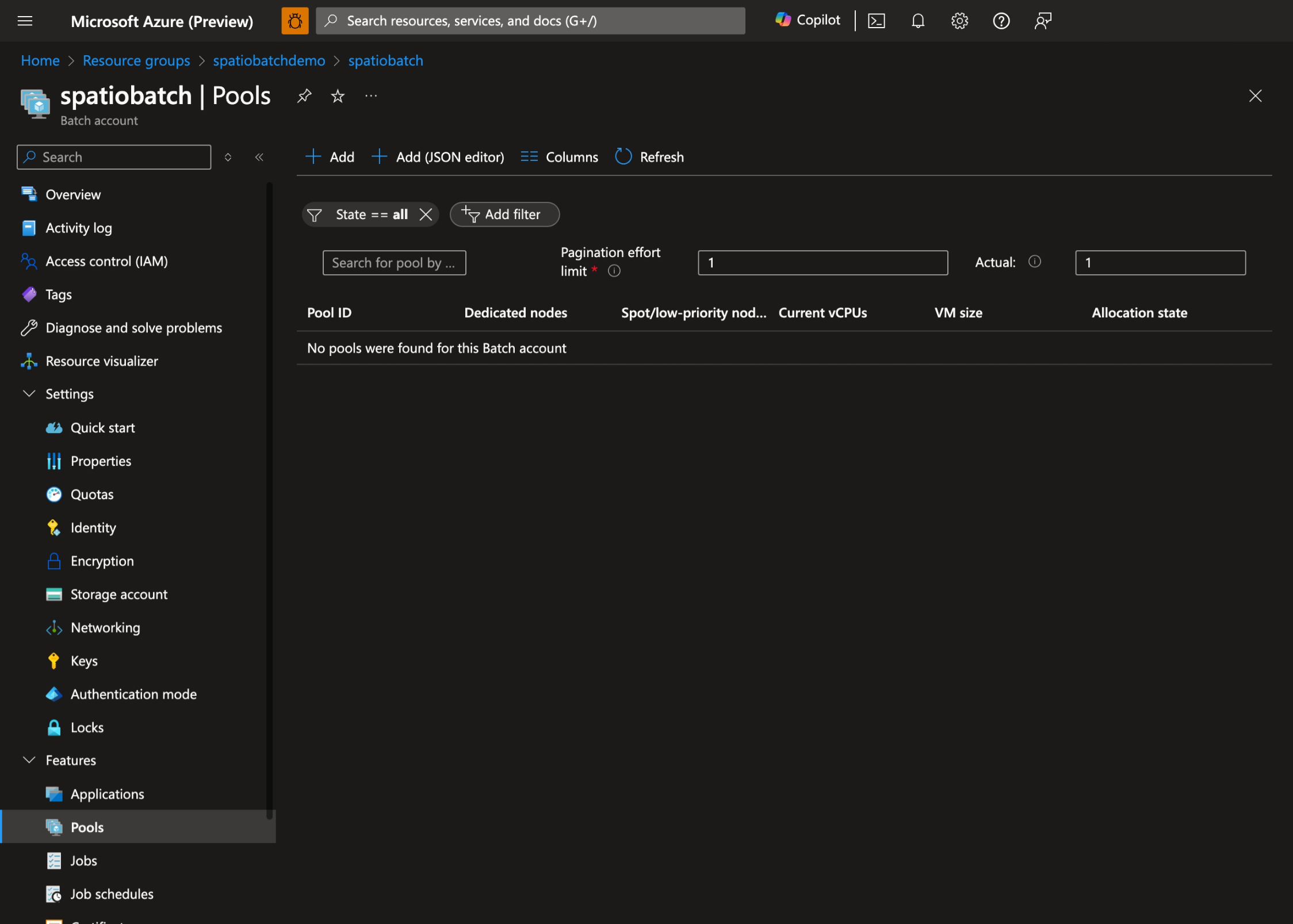
- 在 Azure 门户中,导航到 Batch 帐户并选择“ 池”:
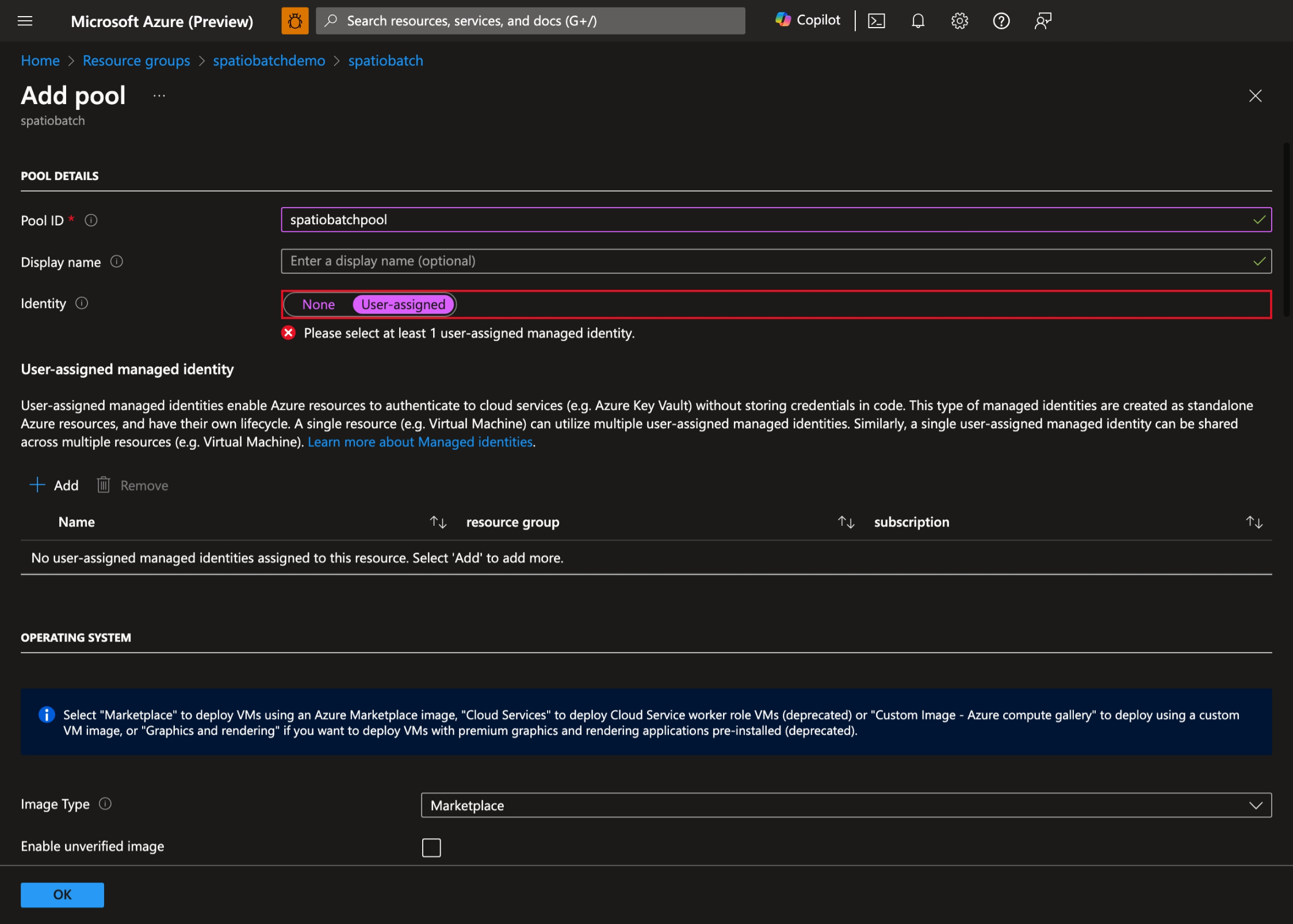
- 选择 “+ 添加 ”以创建新池并选择“ 用户分配 为池的标识:
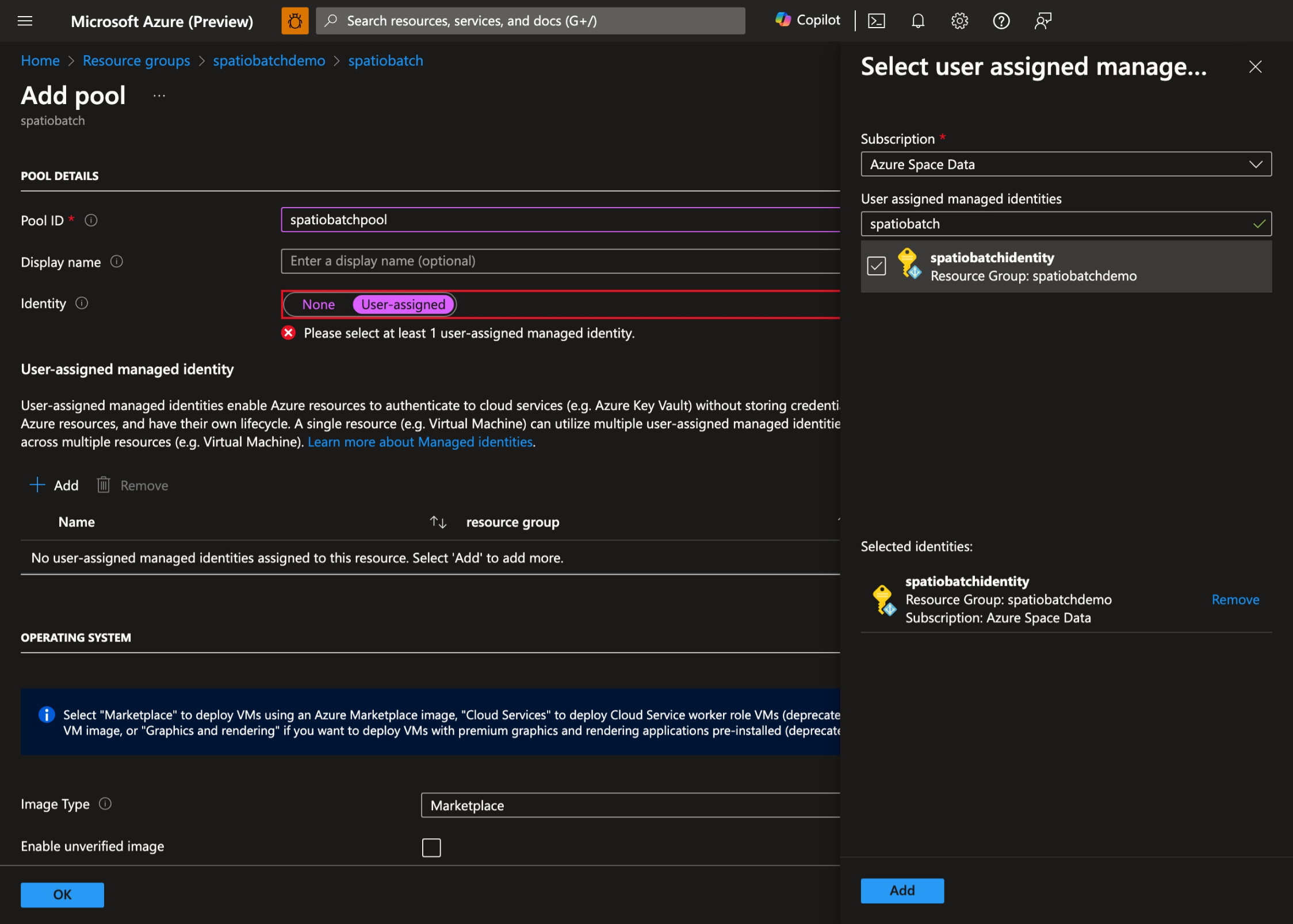
- 选择之前创建的用户分配的托管标识:
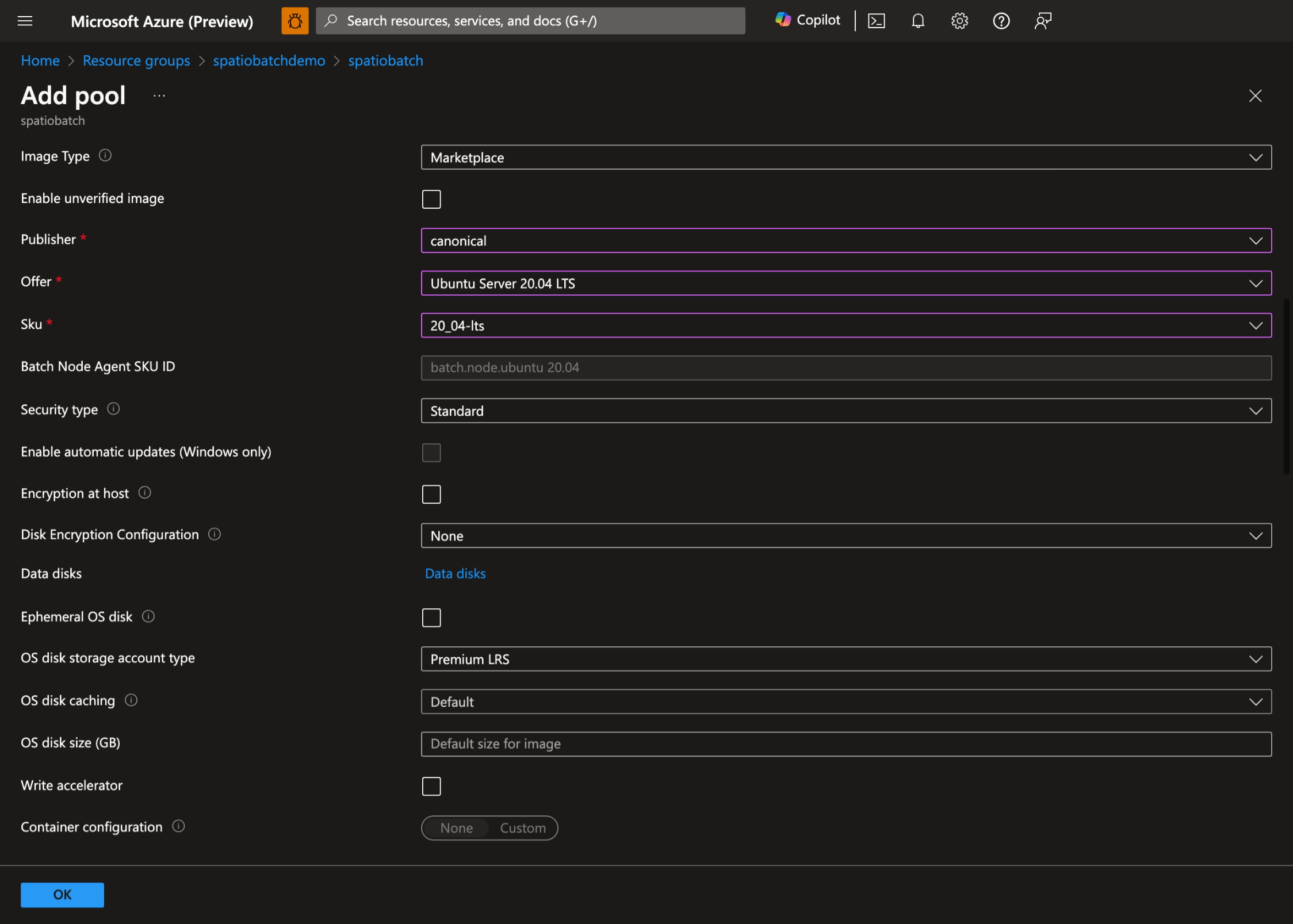
- 选择首选作系统和 VM 大小。 在此演示中,我们使用 Ubuntu Server 20.04 LTS:
- 启用 启动任务,设置以下 命令行:
bash -c "apt-get update && apt-get install jq python3-pip -y && curl -sL https://aka.ms/InstallAzureCLIDeb | bash"并将 提升级别 设置为 池自动用户,管理员: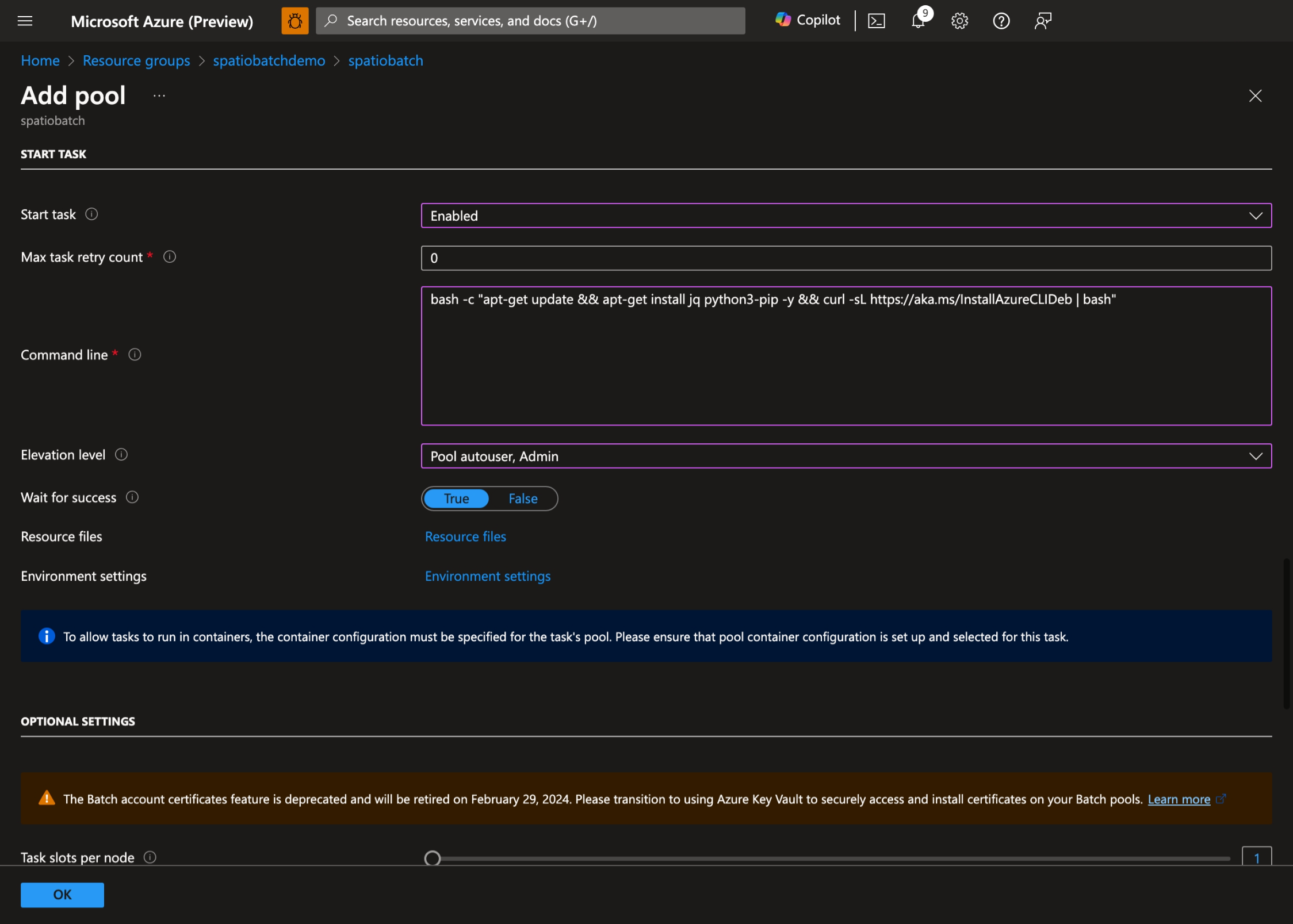
- 选择 “确定 ”以创建池。
为受管身份分配权限
需要提供对 GeoCatalog 的托管标识访问权限。 转到 GeoCatalog,选择“ 访问控制”(IAM), 然后选择“ 添加角色分配”
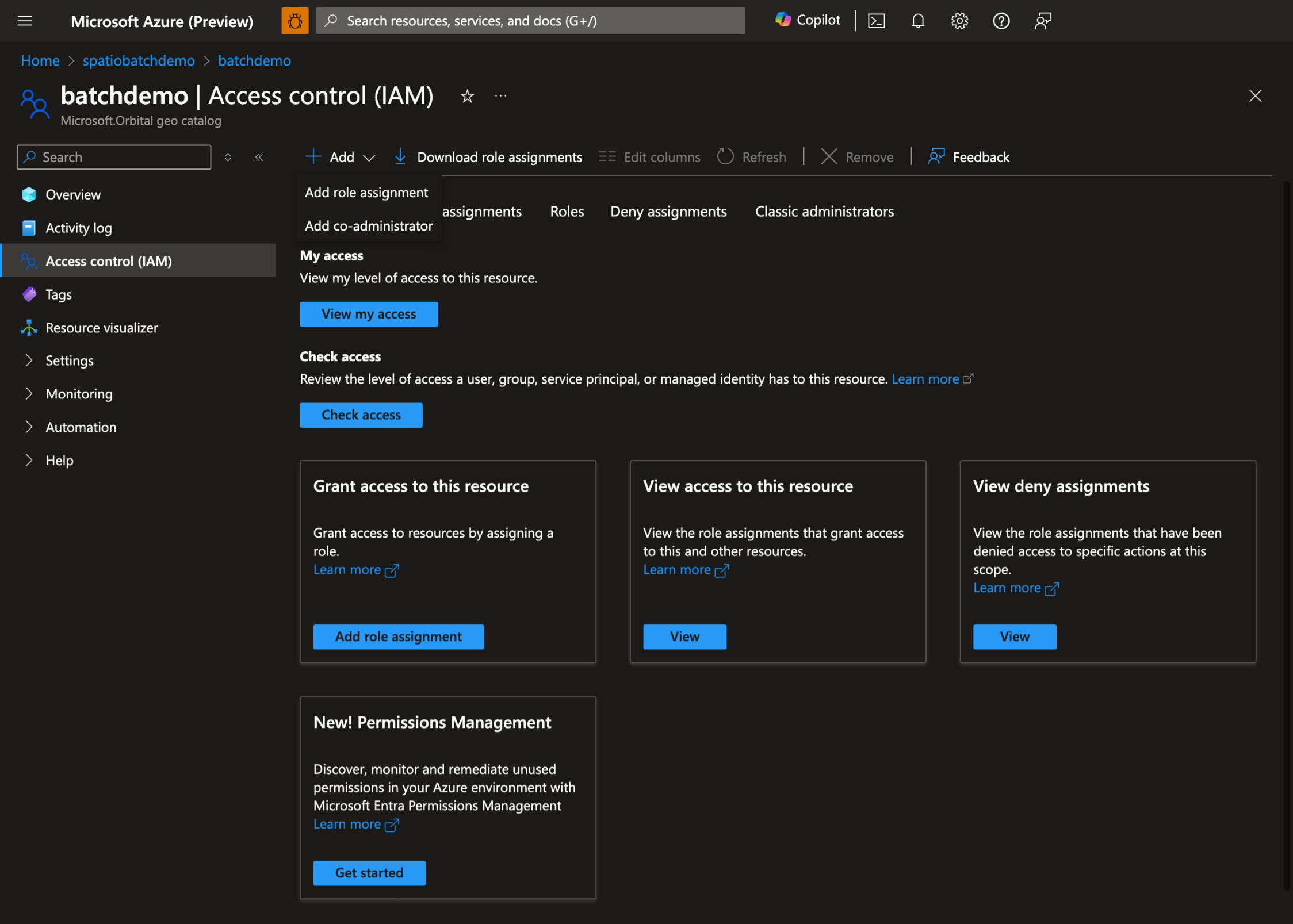
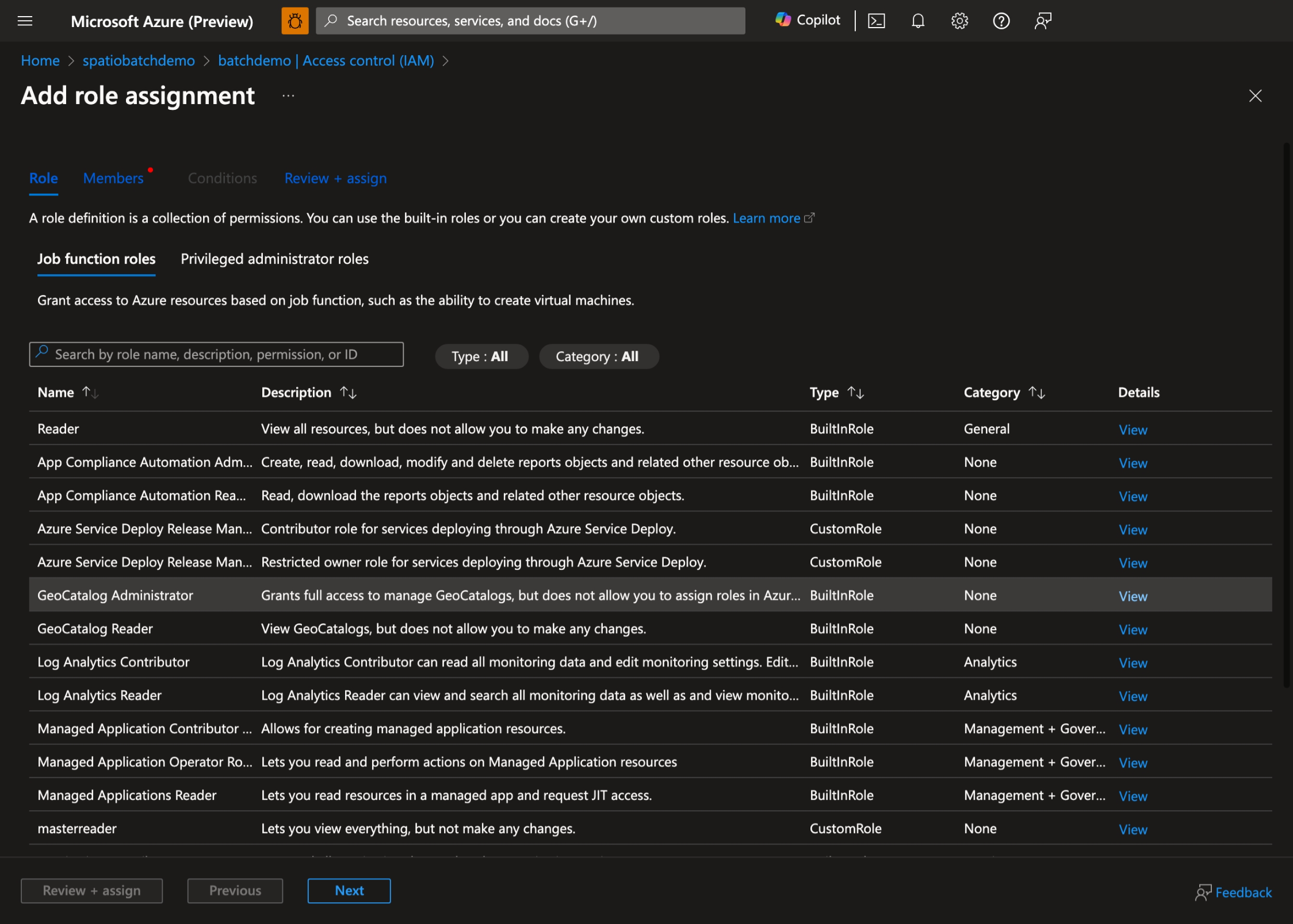
根据需求选择适当的角色, GeoCatalog Administrator 或 GeoCatalog Reader选择“ 下一步” :
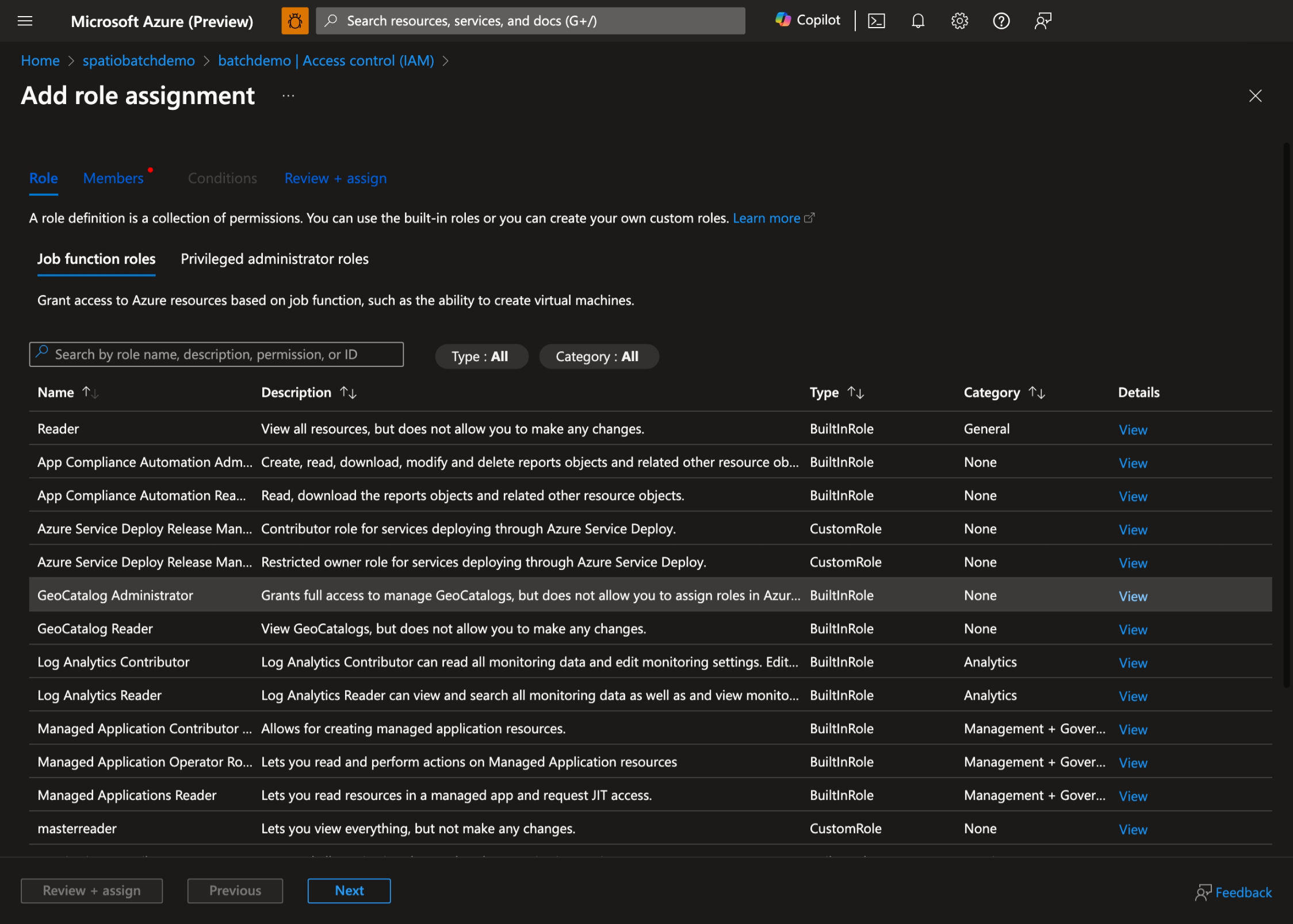
选择创建的托管标识,然后选择 “查看 + 分配”。
准备批处理作业
在存储帐户中创建容器:
az storage container create \
    --name scripts \
    --account-name spatiobatchstorage
将脚本上传到容器:
az storage blob upload \
    --container-name scripts \
    --file src/task.py \
    --name task.py \
    --account-name spatiobatchstorage
运行批处理任务
本快速入门中有两个示例: Python 脚本和 Bash 脚本。 可以使用其中任一项来创建作业。
Python 脚本任务
若要执行 Python 脚本作业,请执行以下命令:
geocatalog_url="<geocatalog url>"
token_expiration=$(date -u -d "30 minutes" "+%Y-%m-%dT%H:%M:%SZ")
python_task_url=$(az storage blob generate-sas --account-name spatiobatchstorage --container-name scripts --name task.py --permissions r --expiry $token_expiration --auth-mode login --as-user --full-uri -o tsv)

cat src/pythonjob.json | perl -pe "s,##PYTHON_TASK_URL##,$python_task_url,g" | perl -pe "s,##GEOCATALOG_URL##,$geocatalog_url,g" | az batch job create --json-file /dev/stdin
Python 作业执行以下 Python 脚本:
import json
from os import environ
import requests
from azure.identity import DefaultAzureCredential

MPCPRO_APP_ID = "https://geocatalog.spatio.azure.com"
credential = DefaultAzureCredential()
access_token = credential.get_token(f"{MPCPRO_APP_ID}/.default")

geocatalog_url = environ["GEOCATALOG_URL"]

response = requests.get(
    f"{geocatalog_url}/stac/collections",
    headers={"Authorization": "Bearer " + access_token.token},
    params={"api-version": "2026-04-15"},
)
print(json.dumps(response.json(), indent=2))
使用 DefaultAzureCredential 对托管标识进行身份验证,并从 GeoCatalog 中检索数据集。 若要获取作业的结果,请执行以下命令:
az batch task file download \
    --job-id pythonjob1 \
    --task-id task1 \
    --file-path "stdout.txt" \
    --destination /dev/stdout
Bash 作业
若要执行 Bash 脚本作业,请运行以下命令:
geocatalog_url="<geocatalog url>"

cat src/bashjob.json | perl -pe "s,##GEOCATALOG_URL##,$geocatalog_url,g" | az batch job create --json-file /dev/stdin
Bash 作业执行以下 Bash 脚本:
az login --identity --allow-no-subscriptions > /dev/null
token=$(az account get-access-token --resource https://geocatalog.spatio.azure.com --query accessToken --output tsv)
curl --header \"Authorization: Bearer $token\" $GEOCATALOG_URL/stac/collections | jq
使用 az login --identity 对托管标识进行身份验证,并从 GeoCatalog 中检索数据集。 若要获取作业的结果,请运行以下命令:
az batch task file download \
    --job-id bashjob1 \
    --task-id task1 \
    --file-path "stdout.txt" \
    --destination /dev/stdout