Note
Access to this page requires authorization. You can try signing in or changing directories.
Access to this page requires authorization. You can try changing directories.
The Customer Conversation harness powers customer conversation agents in Microsoft Contact Center AI, including the Self-Service/Customer Assist Agent. Customer conversations consume Copilot Credits based on their complexity and modality. Digital, GenAI voice, and premium voice conversations can consume different amounts of capacity. Voice Biometrics consumes additional credits when it's enabled for voice conversations.
As a Power Platform administrator, you can use controls in the Power Platform admin center to allocate prepaid credits, limit consumption, and monitor usage for the environments and agents that handle customer conversations.
Important
The capacity and consumption controls in the Power Platform admin center apply across Copilot Studio. They aren't exclusive to the Customer Conversation harness. Configure controls with the other Copilot Studio agents, workflows, and features in mind for each environment.
For information about how consumption is measured, see Overview of usage-based billing.
Before you begin
To manage Copilot Studio capacity, you need the Power Platform Administrator or Global Administrator role, or an equivalent role that can manage licensing and capacity.
Before you configure controls, determine:
- Which environments host Self-Service/Customer Assist Agents.
- Whether each environment uses prepaid capacity, pay-as-you-go billing, or both.
- Which modalities the agents use: digital, GenAI voice, or premium voice.
- Whether Voice Biometrics is enabled for voice conversations.
- The expected number and complexity of customer conversations each month.
- How much monthly consumption is acceptable for each environment and agent.
- Who reviews usage and responds to alerts.
- How agent owners request additional capacity.
What consumes Copilot Credits
Customer conversations that agents handle by using the Customer Conversation harness consume Copilot credits. This usage isn't covered by a user's Microsoft 365 Copilot license.
| Feature | Covered by a Microsoft 365 Copilot license? | When Copilot Credits are billed |
|---|---|---|
| Customer Conversation harness | No | Customer conversations consume credits based on their complexity and modality. |
| Voice Biometrics | No | Each voice enrollment or authentication interaction consumes 6 credits. A voice conversation with two biometric interactions consumes 12 additional credits. |
For estimated credit ranges across digital, GenAI voice, and premium voice modalities, see Overview of usage-based billing.
Plan capacity for customer conversations
Estimate expected consumption before you allocate capacity or set agent limits. Consumption varies based on the number of customer conversations, their complexity, and their modality.
Classify expected conversations as light, medium, or heavy:
- Light: A short voice call or brief digital chat that resolves a simple request with minimal reasoning.
- Medium: A multi-turn interaction that gathers context and uses one or two tools to complete the request.
- Heavy: A long interaction that reasons across multiple facts and tools to plan and execute a resolution.
Create a monthly estimate for each agent by combining:
- Expected customer conversations per month.
- Percentage of light, medium, and heavy conversations.
- Conversation modality.
- Voice conversations that use Voice Biometrics.
- Expected growth or seasonal peaks.
Use the Copilot Credits estimator to model your expected consumption. When Voice Biometrics is enabled, include 6 credits for each enrollment or authentication interaction. The estimator models two biometric interactions per voice conversation, adding 12 credits per voice conversation. Compare the estimate with actual consumption after the agent is deployed, and update allocations and limits when usage patterns change.
Choose cost controls
Use a combination of environment-level and agent-level controls. An agent-level limit helps contain a single workload, while the environment configuration determines which capacity sources are available to all workloads in the environment.
| Control | Use when | Considerations |
|---|---|---|
| Allocate prepaid credits to an environment. | You want to define how much prepaid capacity is assigned to an environment. | An allocation isn't a boundary if the environment can continue drawing from tenant capacity or pay-as-you-go billing. |
| Turn off drawing from tenant capacity. | You don't want the environment to consume unallocated prepaid capacity after its allocation is exhausted. | This setting doesn't prevent consumption through a pay-as-you-go billing plan linked to the environment. |
| Set an agent-level monthly limit. | You want to prevent one Self-Service/Customer Assist Agent from consuming an excessive amount of capacity. | Configure notifications and stop usage when the agent reaches its limit. |
| Apply allocations programmatically. | You need to configure many environments consistently or manage allocations through an administrative process. | Automation requires appropriate permissions, validation, and an owner responsible for maintaining it. |
| Set up pay-as-you-go with Azure budgets and alerts. | An environment uses pay-as-you-go billing and you need subscription-level cost visibility. | Azure budgets and alerts send notifications but don't stop Copilot Studio consumption. |
Note
Environment-level allocation and drawing from tenant capacity use credits from prepaid capacity packs. You can use the Copilot Credit Pre-Purchase Plan (P3) by assigning a pay-as-you-go billing plan under Capacity overages that you configure in Azure.
Contain prepaid consumption for an environment
To contain prepaid consumption, allocate a defined amount of Copilot Credits to the environment and turn off Draw from the available capacity in my tenant.
- Sign in to the Power Platform admin center.
- In the navigation pane, select Licensing.
- Under Products, select Copilot Studio.
- Select Manage Copilot Credits.
- Select the environment.
- Enter the number of Copilot Credits to allocate.
- Under Capacity overages, clear Draw from the available capacity in my tenant.
- Select Save.
When you clear this option, the environment doesn't draw from unallocated prepaid capacity in the tenant after it consumes its allocation. If the environment is linked to a pay-as-you-go billing plan, usage can continue through the linked Azure subscription.
For complete capacity management instructions, see Manage Copilot Credits and capacity for Copilot Studio.
Note
When an environment has no available Copilot Credits, experiences that require credits can stop working. This limitation can affect both makers and end users. For more information, see Enforcement policy for agents consuming Copilot Credits.
Set a monthly limit for an agent
Use an agent-level limit when you need more granular control than the environment allocation provides. Base the initial limit on estimated monthly consumption and include enough headroom for expected demand changes.
- In the Power Platform admin center, go to Licensing > Copilot Studio.
- Select Manage Agents.
- Select the customer conversation agent, and then select Set limit.
- Enter the monthly Copilot Credit limit.
- Configure the notification threshold.
- Turn on Stop usage if the agent should be turned off when it reaches the limit.
- Select Save.
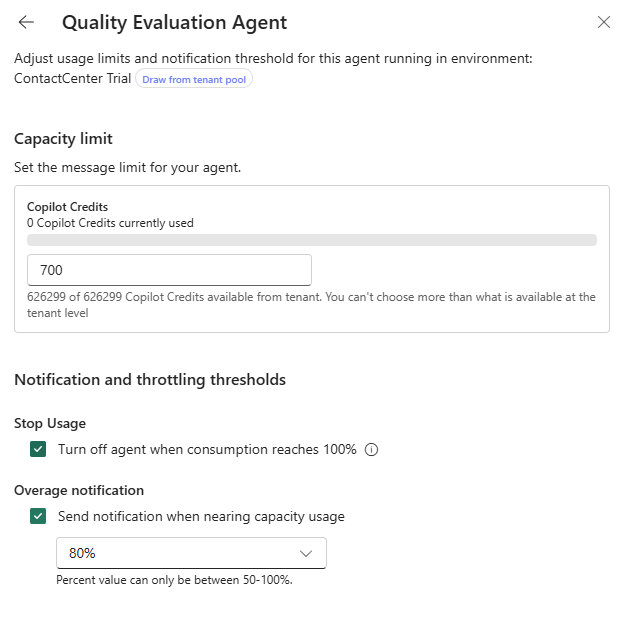
Review agent limits regularly and adjust them based on actual customer conversation volume and complexity. For more information, see Manage monthly consumption limits for Copilot Studio agents.
Manage allocations across many environments
For a large number of environments, use the Power Platform API or an administration SDK to apply allocations and tenant-capacity draw settings consistently.
Automated allocation is useful when you:
- Maintain an approved list of environments that can consume Copilot Credits.
- Standardize allocations and overage behavior.
- Configure capacity as part of an environment provisioning process.
- Periodically reconcile new or changed environments.
For authentication requirements and PowerShell, C#, and Python examples, see Manage Copilot Credits allocations programmatically.
Use the Cost controls - Draw from tenant credit pool environment groups rule to control whether environments in a group can use unallocated Copilot Credits from the tenant pool. When enabled, an environment can draw from the tenant pool after it exhausts its allocation or when no allocation is set.
For eligible Copilot Studio environments, Draw from the available capacity in my tenant is selected by default when no allocation configuration exists. Clear this option to cap prepaid consumption at the environment's allocation. If the environment has no allocation, it can't consume prepaid capacity from the tenant pool. Usage can still continue through a linked pay-as-you-go billing plan.
When you publish a rule, it governs every environment in the group. The environment-level setting becomes read-only in the Power Platform admin center, and programmatic requests can't override it. To retain environment-level control, don't publish the rule for that group, or remove the environment from the group. After removal, the environment retains the last value applied by the group, but the setting becomes editable.
Manage pay-as-you-go costs
When you link an environment to a pay-as-you-go billing plan, you can bill Copilot Studio usage to the associated Azure subscription. Use Azure Cost Management to create budgets and alerts for the Power Platform account resource associated with the billing plan.
Budgets and alerts help finance and service owners monitor spending, but they don't stop usage. To create a workload-level stopping point, also configure an agent limit with Stop usage. Keep an accountable business owner for each pay-as-you-go billing plan and environment.
For more information, see:
Monitor customer conversation consumption
Use the Copilot Studio licensing pages in the Power Platform admin center to review consumption at multiple levels:
- Tenant: Review purchased, allocated, and consumed capacity.
- Environment: Compare prepaid and pay-as-you-go consumption and identify environments in overage.
- Agent: Review month-to-date billed credits, configured limits, and agent status.
- Report: Download detailed consumption data for additional analysis.
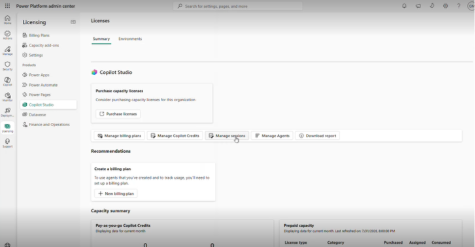
Review environment and agent consumption together. A tenant-level total alone might not reveal an individual Self-Service/Customer Assist Agent that is consuming more credits than expected.
Start with the environment report to identify where consumption occurs. Then use the agent report and the detailed environment report to isolate the agent, product or AI feature, channel, and billed credits associated with customer conversations. If Voice Biometrics is enabled, include its enrollment and authentication consumption in your review. Compare the results with expected conversation volume, modality, complexity, and biometric interactions.
Discrete costs aren't attributed to individual makers or end users. Copilot Studio usage is billed at the environment and agent level, not at the user level. Use permissions to control who builds and runs agents, and use environment and agent limits to contain consumption.
For information about the available views and reports, see Manage Copilot Credits and capacity for Copilot Studio.
Coordinate capacity across admin centers
Prepaid Copilot Credit capacity packs can be used by experiences managed in both the Power Platform admin center and the Microsoft 365 admin center. Capacity allocated to Power Platform environments or consumed by Copilot Studio reduces the prepaid capacity available to supported Microsoft 365 experiences, such as Cowork and Work IQ.
Review capacity in both admin centers if your organization uses these experiences:
- Use the Power Platform admin center to manage Copilot Studio environment allocations and agent consumption.
- Use Copilot > Cost Management in the Microsoft 365 admin center to review capacity available to Microsoft 365 usage-based experiences and manage their spending policies.
For more information, see Managing AI experiences enabled by usage-based billing.
Establish an access and capacity request process
Use your organization's existing access and approval process for agent owners who need an environment role or extra capacity.
Document:
- Who can approve access to an environment.
- Who can approve a higher agent or environment limit.
- How agent owners submit a request.
- What business justification and expected usage information the request must include.
- Who reviews consumption after access is granted.
Pair restrictive limits with a documented request path so that agent owners know how to request extra capacity when they have a valid business need.