Note
Access to this page requires authorization. You can try signing in or changing directories.
Access to this page requires authorization. You can try changing directories.
Agents powered by the GitHub Copilot harness use consumption-based billing. Building, testing, evaluating, and running these agents can consume Copilot Credits. This usage isn't included with a user's Microsoft 365 Copilot license.
As a Power Platform administrator, you can use controls in the Power Platform admin center to allocate prepaid credits, limit consumption, monitor usage, and identify agents created through the GitHub Copilot harness.
Important
The capacity and consumption controls in the Power Platform admin center apply across Copilot Studio. They aren't exclusive to the GitHub Copilot harness. Configure controls with the other Copilot Studio agents, workflows, and features in mind for each environment.
For information about which activities consume credits and how consumption is measured, see Overview of billing for agents powered by the GitHub Copilot harness.
Control who can build, and control how much they can spend
Maker permissions and spending controls do different jobs, so you need both.
Control who can create agents. The GitHub Copilot harness doesn't have its own maker-access setting. To control who can create agents, use your existing Copilot Studio and environment permissions.
- For environment access and authoring permissions, see Work with Power Platform environments.
- To restrict authoring, or to block access to Copilot Studio completely, see the Authors-group troubleshooting guidance.
Important
Choosing a group in the Copilot Studio authors setting doesn't automatically remove access from users outside that group. Review existing access separately.
Limit authoring access in production environments and in any environment with a large credit allocation. Give approved makers governed development environments with defined credit allocations, limits, and alerts. Use your internal access and capacity request process to approve makers and to handle requests for more capacity.
Control how much agents consume. Credit allocations and agent limits control consumption. They don't control who is an approved author or who can open the Copilot Studio portal. Set environment credit controls and agent monthly limits in addition to permissions, not instead of them.
Note
Changes to shared capacity can affect other Copilot Studio agents, workflows, and features in the same environment.
Before you begin
To manage Copilot Studio capacity, you need the Power Platform Administrator or Global Administrator role, or an equivalent role that can manage licensing and capacity.
Before you configure controls, determine:
- Which environments can host agents powered by the GitHub Copilot harness.
- Whether each environment uses prepaid capacity, pay-as-you-go billing, or both.
- How much monthly consumption is acceptable for each environment and agent.
- Who is responsible for reviewing usage and responding to alerts.
- How makers request access or additional capacity.
What consumes Copilot Credits in Copilot Studio today
This table lists the Copilot Studio features that consume Copilot Credits and when a Microsoft 365 Copilot license covers the usage.
| Feature | Covered by a Microsoft 365 Copilot license? | When Copilot Credits are billed |
|---|---|---|
| Standard harness agents | Yes, in Microsoft 365 channels | Billed when the user has no Microsoft 365 Copilot license, or when the agent is used in a channel outside Microsoft 365. |
| Agent flows | Yes, when a standard harness agent calls the agent flow through the When an agent calls the flow trigger while a user who is authenticated with a Microsoft 365 Copilot license is interacting with the agent | Billed in all other cases, including agent flow runs that an agent starts while it runs autonomously and agent flows that use other triggers. Runs from the agent's test chat and test runs in the flow designer aren't billed. |
| Workflows | Yes, when run inside a standard harness agent by a licensed user | Billed in all other cases. |
| Prompts | Yes, when run inside a standard harness agent by a licensed user | Billed in all other cases. |
| Computer use (CUA) | No | Billed for all usage. |
| GitHub Copilot harness agents | No | Billed for all usage. Creation and runtime activities consume Copilot Credits regardless of the user's license. |
Choose cost controls
Use a combination of environment-level and agent-level controls. An agent-level limit helps contain a single workload, while the environment configuration determines which capacity sources are available to all workloads in the environment.
| Control | Use when | Considerations |
|---|---|---|
| Allocate prepaid credits to an environment. | You want to define how much prepaid capacity is assigned to an environment. | An allocation isn't a boundary if the environment can continue drawing from tenant capacity or pay-as-you-go billing. |
| Turn off drawing from tenant capacity. | You don't want the environment to consume unallocated prepaid capacity after its allocation is exhausted. | This setting doesn't prevent consumption through a pay-as-you-go billing plan linked to the environment. |
| Set an agent-level monthly limit. | You want to prevent one agent from consuming an excessive amount of capacity. | Configure notifications and stop usage when the agent reaches its limit. |
| Apply allocations programmatically. | You need to configure many environments consistently or manage allocations through an administrative process. | Automation requires appropriate permissions, validation, and an owner responsible for maintaining it. |
| Set up pay-as-you-go with Azure budgets and alerts. | An environment uses pay-as-you-go billing and you need subscription-level cost visibility. | Azure budgets and alerts send notifications but don't stop Copilot Studio consumption. |
Note
Environment-level allocation and drawing from tenant capacity leverage credits from prepaid capacity packs. You can use the Copilot Credit Pre-Purchase Plan (P3) through assigning a pay-as-you-go billing plan under Capacity overages that you configure in Azure.
Contain prepaid consumption for an environment
To contain prepaid consumption, allocate a defined amount of Copilot Credits to the environment and turn off Draw from the available capacity in my tenant.
- Sign in to the Power Platform admin center.
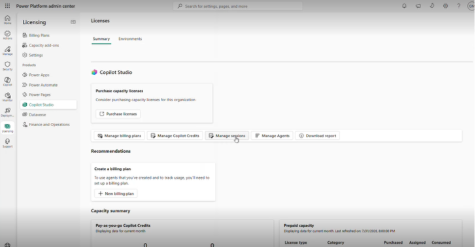
- In the navigation pane, select Licensing.
- Under Products, select Copilot Studio.
- Select Manage Copilot Credits.
- Select the environment.
- Enter the number of Copilot Credits to allocate.
- Under Capacity overages, clear Draw from the available capacity in my tenant.
- Select Save.
When you clear this option, the environment doesn't draw from unallocated prepaid capacity in the tenant after it consumes its allocation. If the environment is linked to a pay-as-you-go billing plan, usage can continue through the linked Azure subscription.
For complete capacity management instructions, see Manage Copilot Credits and capacity for Copilot Studio.
Note
When an environment has no available Copilot Credits, experiences that require credits can stop working. This limitation can affect both makers and end users. For more information, see Enforcement policy for agents consuming Copilot Credits.
Set a monthly limit for an agent
Use an agent-level limit when you need more granular control than the environment allocation provides.
- In the Power Platform admin center, go to Licensing > Copilot Studio.
- Select Manage Agents.
- Select the agent, and then select Set limit.
- Enter the monthly Copilot Credit limit.
- Configure the notification threshold.
- Turn on Stop usage if the agent should be turned off when it reaches the limit.
- Select Save.
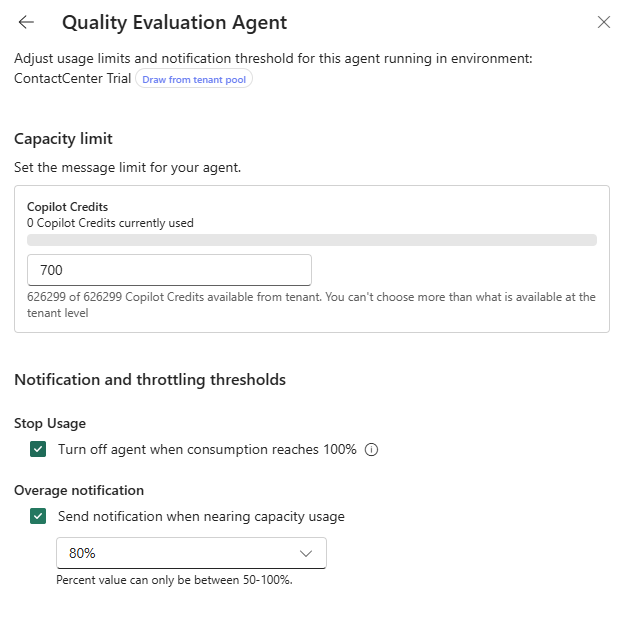
Review agent limits regularly and adjust them based on expected business demand. For more information, see Manage monthly consumption limits for Copilot Studio agents.
Manage allocations across many environments
For a large number of environments, use the Power Platform API or an administration SDK to apply allocations and tenant-capacity draw settings consistently.
Automated allocation is useful when you:
- Maintain an approved list of environments that can consume Copilot Credits.
- Standardize allocations and overage behavior.
- Configure capacity as part of an environment provisioning process.
- Periodically reconcile new or changed environments.
For authentication requirements and PowerShell, C#, and Python examples, see Manage Copilot Credits allocations programmatically.
Use the Cost controls - Draw from tenant credit pool environment groups rule to control whether environments in a group can use unallocated Copilot Credits from the tenant pool. When enabled, an environment can draw from the tenant pool after it exhausts its allocation or when no allocation is set.
For eligible Copilot Studio environments, Draw from the available capacity in my tenant is selected by default when no allocation configuration exists. Clear this option to cap prepaid consumption at the environment's allocation. If the environment has no allocation, it can't consume prepaid capacity from the tenant pool. Usage can still continue through a linked pay-as-you-go billing plan.
When you publish a rule, it governs every environment in the group. The environment-level setting becomes read-only in the Power Platform admin center, and programmatic requests can't override it. To retain environment-level control, don't publish the rule for that group, or remove the environment from the group. After removal, the environment retains the last value applied by the group, but the setting becomes editable.
Manage pay-as-you-go costs
When you link an environment to a pay-as-you-go billing plan, you can bill Copilot Studio usage to the associated Azure subscription. Use Azure Cost Management to create budgets and alerts for the Power Platform account resource associated with the billing plan.
Budgets and alerts help finance and service owners monitor spending, but they don't stop usage. To create a workload-level stopping point, also configure an agent limit with Stop usage. Keep an accountable business owner for each pay-as-you-go billing plan and environment.
For more information, see:
Monitor Copilot Credit consumption
Use the Copilot Studio licensing pages in the Power Platform admin center to review consumption at multiple levels:
- Tenant: Review purchased, allocated, and consumed capacity.
- Environment: Compare prepaid and pay-as-you-go consumption and identify environments in overage.
- Agent: Review month-to-date billed credits, configured limits, and agent status.
- Report: Download detailed consumption data for additional analysis.
Review environment and agent consumption together. A tenant-level total alone might not reveal an individual environment or agent that is consuming more credits than expected.
Copilot Credits are charged to the environment where the agent runs, from prepaid capacity or through the environment's pay-as-you-go billing plan, and not to the individual makers or users who run agents. To contain consumption, use permissions to control who builds and runs agents, and use environment and agent limits.
For information about the available views, see Manage Copilot Credits and capacity for Copilot Studio.
Identify and count agents created through the GitHub Copilot harness
You can see a breakdown of agents created through the GitHub Copilot harness in Power Platform inventory.
Use the Harness column in the Power Platform admin center
The fastest way to identify these agents is the Harness column in the agent inventory.
- Sign in to the Power Platform admin center.
- In the navigation pane, select Manage > Copilot Studio.
- Filter the Harness column to GitHub Copilot.
The column shows which harness each agent is built with: GitHub Copilot, Standard, or Copilot Chat. Only agents with the GitHub Copilot value use consumption-based billing for all activity.
For more information, see Harness in the Copilot Studio agent inventory schema.
Query the inventory programmatically
Harness is currently a user interface column only.
For ready-to-run queries and instructions for running them, see Count agents by harness and List agents with their harness.
Coordinate capacity across admin centers
Prepaid Copilot Credit capacity packs can be used by experiences managed in both the Power Platform admin center and the Microsoft 365 admin center. Capacity allocated to Power Platform environments or consumed by Copilot Studio reduces the prepaid capacity available to supported Microsoft 365 experiences, such as Cowork and Work IQ.
Review capacity in both admin centers if your organization uses these experiences:
- Use the Power Platform admin center to manage Copilot Studio environment allocations and agent consumption.
- Use Copilot > Cost Management in the Microsoft 365 admin center to review capacity available to Microsoft 365 usage-based experiences and manage their spending policies.
For more information, see Managing AI experiences enabled by usage-based billing.
Establish an access and capacity request process
The Power Platform admin center doesn't have a GitHub Copilot harness-specific request process. Use your organization's existing access and approval process for makers who need an environment role or extra capacity.
Document:
- Who can approve access to an environment.
- Who can approve a higher agent or environment limit.
- How makers submit a request.
- What business justification and expected usage information the request must include.
- Who reviews consumption after access is granted.
Pair restrictive limits with a documented request path so that makers know how to request extra capacity when they have a valid business need.
Prepare for the end of preview billing
Developer environments and trial environments move to usage-based billing September 1, 2026. Review the Non-billed Copilot Credits information in Manage Agents and in the downloadable consumption report. This information can provide a directional view of agent consumption, but it isn't a billing estimate or a guarantee of future cost.
Before that date:
- Identify agents created through the GitHub Copilot harness.
- Review their recent nonbilled consumption.
- Configure environment capacity and overage behavior.
- Set limits and notifications for higher-risk agents.
- Configure Azure budgets and alerts for pay-as-you-go billing plans.
- Assign an owner to review consumption after billing begins.