Note
Access to this page requires authorization. You can try signing in or changing directories.
Access to this page requires authorization. You can try changing directories.
[This article is prerelease documentation and is subject to change.]
In Dynamics 365, use CRM Canvas Designer to build and change record pages called canvases. A canvas is a record page for one table, such as account or contact, made of sections and components. Sellers and customer service representatives see a canvas view when they open a record.
The canvas designer brings together your data, insights, and a layout that fits how your teams work. Admins and makers customize the canvas and choose who can access it.
Important
- This is a preview feature.
- Preview features aren’t meant for production use and might have restricted functionality. These features are subject to supplemental terms of use, and are available before an official release so that customers can get early access and provide feedback.
How canvases fit together
The canvas designer is part of canvas studio, a tile in the Dynamics 365 AI hub. Canvas studio has two parts:
- Canvases: Record pages that users see. Canvases are available for account, contact, opportunity, and case records. You change them, or build your own, in the canvas designer.
- Insights: Copilot's understanding of your business. It learns from your Dynamics 365 data and how your business works, and it powers the insights and actions that appear on canvases. Insights are available for contact and account. Learn more in insights overview
The canvas designer decides where and how much of that understanding appears on a record page. Your insights setup decides what the insights are.
Bring customer information together
| Canvas | What your team can review | Reference articles |
|---|---|---|
| Account | Account information, insights, recent activities, a relationship map, and related business records, such as opportunities and cases. | Use account canvas |
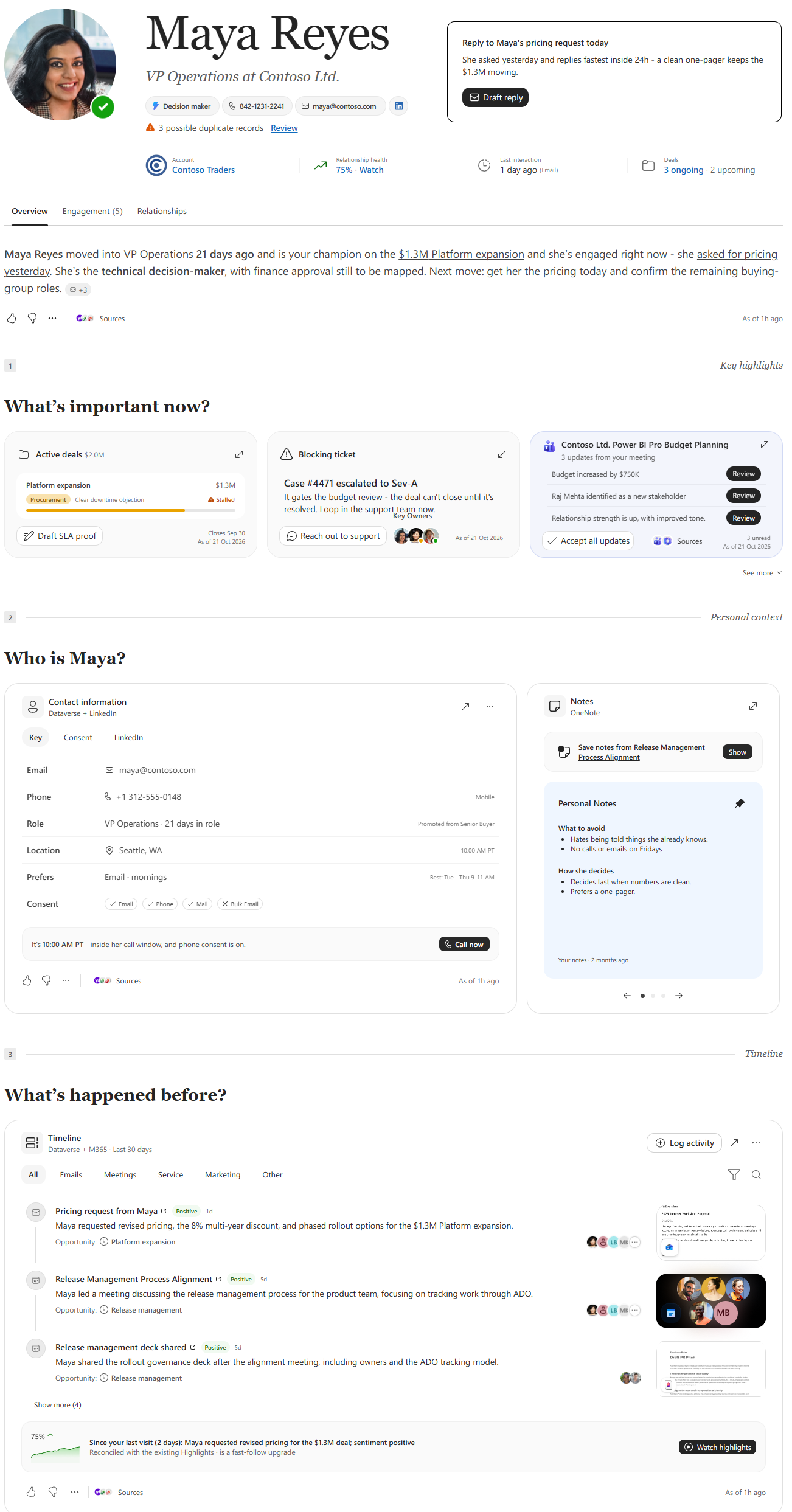
| Contact | Contact information, insights, notes, recent activities, business involvement, and relationships. | Use contact canvases |
| Opportunity | Key opportunity information, upcoming meetings, recent activities, and actions in one experience. | Use opportunity canvas |
| Case | Customer and case information that helps service representatives understand the case and work toward resolution in Copilot Service workspace. | Use case canvases |
| Email information and related customer context to help service representatives respond effectively. | Use the canvas experience in email |
Components vary by canvas, and your customizations can change what your team sees. For example, an account canvas can bring open opportunities and support cases together so a seller can review service concerns before a customer meeting.
Learn more in Insights overview.
How each role uses canvases
| Role | How they use it | Reference articles |
|---|---|---|
| Admin | Turns on canvases in Canvas studio, chooses the apps and people who see them, and sets up insights. Controls organization-wide choices, such as which insights are on and whether insights include duplicate records. | - Create and publish a canvas in CRM Canvas Designer - Manage canvases in CRM Canvas Designer. - Set up and configure insights - Create and manage custom insights |
| Seller | Opens the canvas experience when they open an account, contact, or opportunity record. Starts with What's important now and then quickly gets an overview of the account, contact, or deal information. | - Use the canvas experience for accounts - Use contact canvases - Use the canvas experience for opportunities - Account and contact insights in Copilot and agents |
| Service representative | Uses the same account and contact canvases as sellers to understand a customer, case and emails canvases to work a case through to resolution. The same account and contact insights can also appear in Service agent. | - Use the canvas experience for accounts - Use contact canvases - Use case canvases - Use the canvas experience in email - Account and contact insights in Copilot and agents |
Example: Contact at Contoso
Contoso's sellers want to reach quiet contacts sooner.
The administrator view. The maker opens the contact canvas in the canvas designer, which creates Contoso's own copy. They add Contoso's custom Preferred contact channel field to the contact information, keep the timeline focused on recent activity, and show three insight cards before See more. The admin publishes the canvas to the sales team in Sales Hub.
The user view. A user opens a contact and lands on What's important now. The Contact Two-Way Engagement Recency insight shows how many days have passed since the contact last engaged back, and the card offers a drafted message to re-engage them. The draft is built only from facts in the record, and nothing is sent until the user sends it.
If the admin turned on duplicate detection, insights also include the customer's duplicate records. Nothing is merged or changed.
Related information
Use context-aware canvases
Use the canvas experience for opportunities