Note
Access to this page requires authorization. You can try signing in or changing directories.
Access to this page requires authorization. You can try changing directories.
Fabric Plan provides an Excel-like formula engine with more than 100 formulas and functions, including logical, conditional, mathematical, text, date, lookup, and statistical functions.
Working with the formula editor
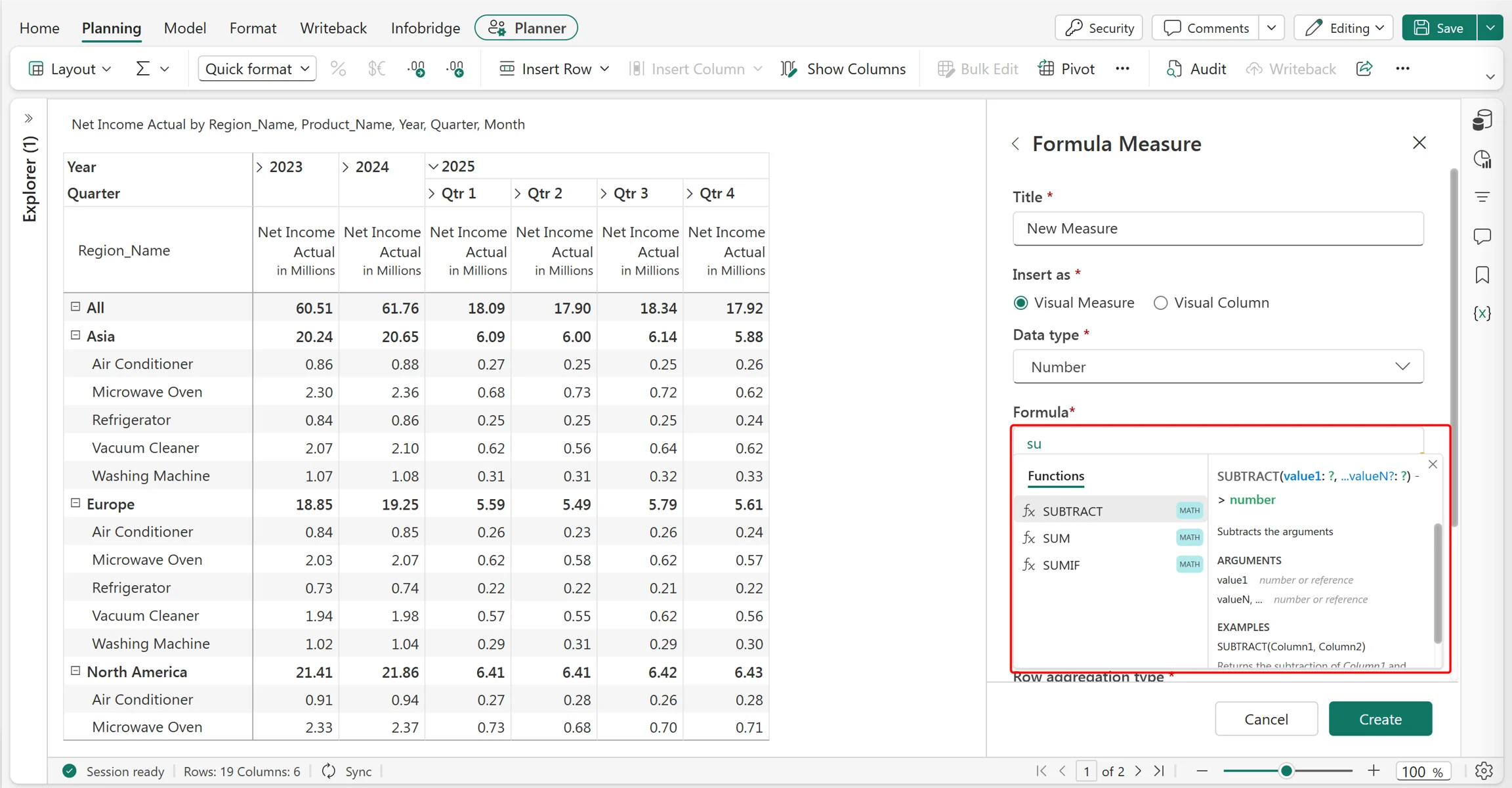
Add formula measures or columns to your planning sheet to perform calculations without writing complex code. After you add a formula measure, configure the formula in the Formula Editor in the side panel. As you enter the formula, the editor provides auto-suggestions and auto-complete features. It also displays syntax and examples to help you create and troubleshoot formulas.
You can also use Ctrl + Space to open the suggestions.
- Use the References tab in the pop-up to select measure or column references.
- Use Functions tab to choose and enter a formula.
For information about adding a formula column, configuring formulas, and resolving calculation errors, see Insert formula column.
Types of formulas
The following sections list the supported formulas, operators, and identifiers, with syntax and examples:
- Conditional statements
- Logical functions
- Math functions
- Text formatting functions
- Date functions
- Time intelligence functions
- Statistical Functions
- Identifiers
- Lookup functions
- Other operators
PowerTable formulas
PowerTable supports formulas in formula columns and for derived default values.
The syntax and working of formulas are consistent across Fabric Plan, in both planning sheets and PowerTable. For more information, see Formulas and functions in PowerTable.